Automatic Assignment Rules
Experimental Feature
Labels are an experimental feature introduced in 8.1, disabled by
default. To enable labels, set the ENABLE_LABELS feature flag. See
Labels for details.
Rules apply labels to every device that matches a set of conditions, so you do not have to assign labels manually as the network changes.
Create a Rule
- Navigate to Settings → Discovery & Snapshots → Discovery Data Enrichment → Rules and click + Add new.
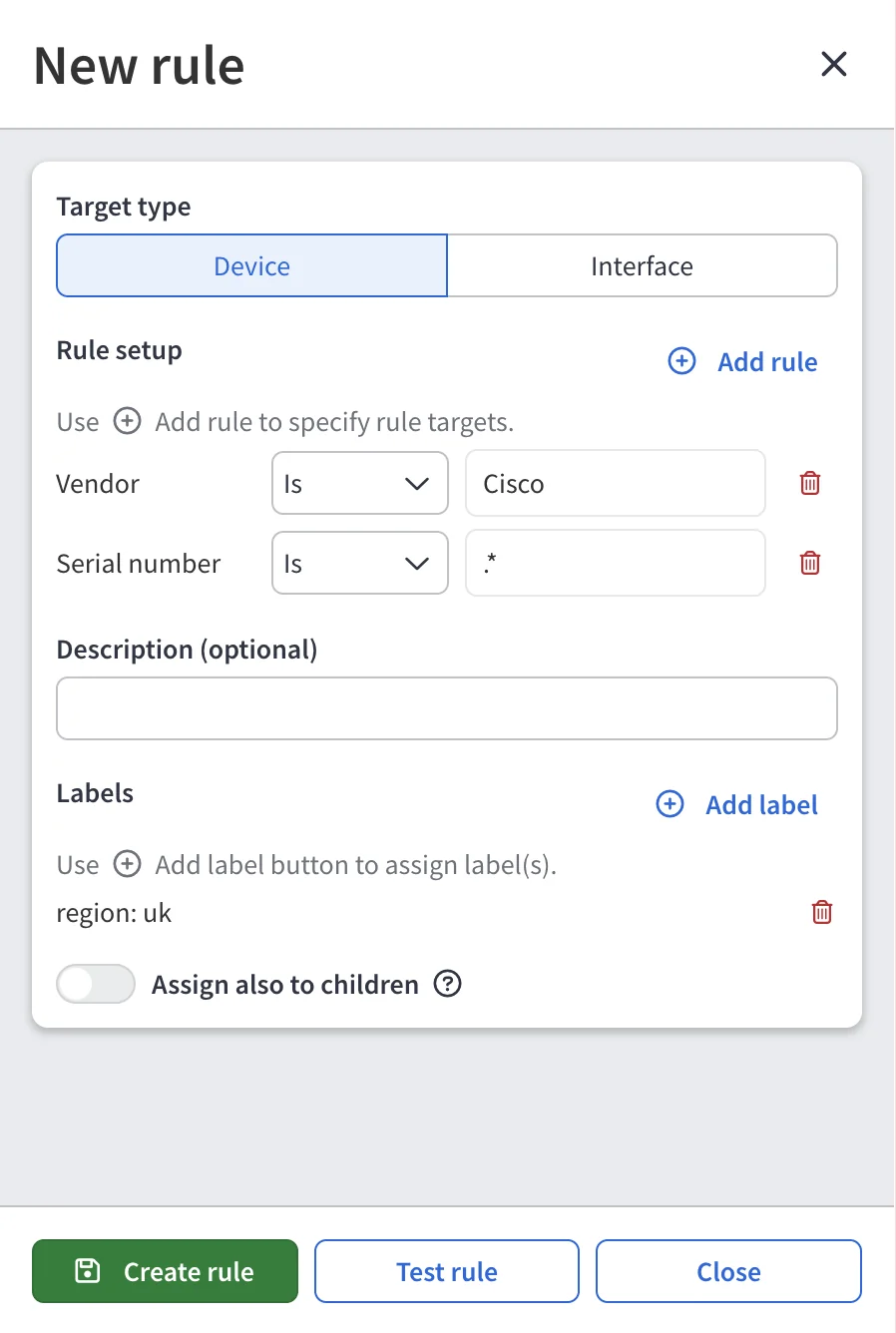
- In Rule setup, click + Add rule to add one or more conditions. Each condition consists of a device property, an operator, and a regular expression.
- (Optional) Add a description of up to 256 characters.
- In Labels, click + Add label to add the labels the rule assigns. A rule needs at least one label.
- (Optional) Enable Assign also to children, so matching devices also pass their labels to their L2 interfaces.
- Click Test rule to see which devices the conditions currently match.
- Click Create rule.
Properties and Operators
A condition can use the following device properties:
- Hostname
- Vendor
- Family
- Model
- Platform
- Version
- Serial number
Each property supports two operators, and both match the value as a regular expression, not as an exact string:
- Is – The property matches the regular expression. For example,
Hostname is
^par-matches every hostname starting withpar-. - Is not – The property does not match the regular expression. For
example, Model is not
^C9[0-9]{3}excludes Catalyst 9000 models.
To match the entire value instead of a part of it, anchor the expression with
^ and $. For example, Hostname is ^par-core-01$ matches only the
hostname par-core-01, but not par-core-01-old.
Each property appears only once per rule. IP Fabric combines conditions with
AND – a device must match all of them. IP Fabric validates the regular
expression when you save the rule.
Example
A rule has two conditions – Hostname is ^par- and Vendor is
cisco – and assigns region:EMEA and site:paris, with inheritance
turned on.
Every Cisco device whose hostname starts with par- receives both labels,
and so does each of its L2 interfaces.
When a Rule Takes Effect
IP Fabric evaluates rules during the label calculation that follows discovery. Saving a rule does not relabel existing snapshots.
Tracing a Label Back to Its Rule
The Rules tab lists each rule’s target conditions, assigned labels, inheritance status, description, last-changed date, and last-changed user. Click the icons in the Actions column to edit or remove a rule.
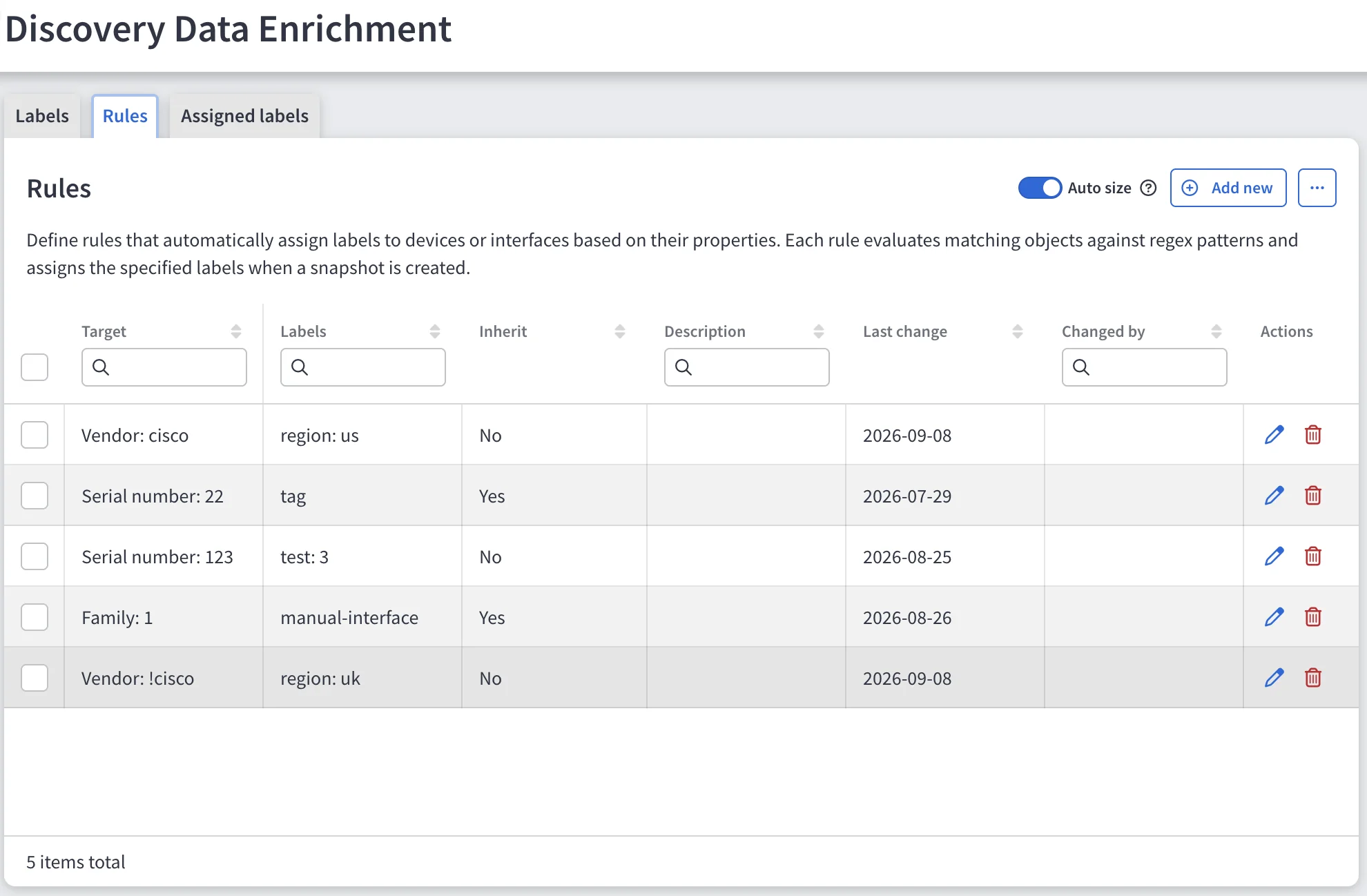
In the Assigned labels tab and in the Labels tab of Device Explorer, a rule-produced assignment links back to the rule that produced it.