Google Cloud Platform (GCP)
How To Enable GCP APIs
Since version 7.8 and above requires these GCP APIs to be enabled for full functionality:
- Cloud Resource Manager API (cloudresourcemanager.googleapis.com)
- Compute Engine API (compute.googleapis.com)
- Network Connectivity API (networkconnectivity.googleapis.com)
-
Select the project where you want to enable the API:
-
Navigate to APIs & Services → API Library → Browse, search for the API, and select it:
-
Enable the API:
-
Repeat these steps for all required APIs and projects.
How To Create a Custom Role
-
Select your organization. If you don’t have an organization, or if you prefer not to grant IP Fabric access to the entire organization, you can create the custom roles at the project level:
-
Navigate to IAM & Admin → Roles:
-
Create a custom role and assign the following required permissions:
For IP Fabric version 7.8 and above:
resourcemanager.projects.list (organization-level permission) resourcemanager.projects.get networkconnectivity.regionalEndpoints.get compute.addresses.list compute.autoscalers.list compute.backendServices.get compute.backendServices.list compute.regionBackendServices.get compute.regionBackendServices.list compute.firewalls.list compute.forwardingRules.list compute.instanceGroupManagers.list compute.instanceGroups.list compute.instanceTemplates.list compute.instances.list compute.interconnectAttachments.list compute.networkEndpointGroups.list compute.networkEndpointGroups.get compute.networks.list compute.routers.get compute.routers.list compute.routes.list compute.serviceAttachments.list compute.subnetworks.list compute.targetGrpcProxies.list compute.targetHttpProxies.list compute.targetHttpsProxies.list compute.targetTcpProxies.list compute.targetVpnGateways.list compute.urlMaps.list compute.vpnGateways.list compute.vpnTunnels.list compute.zones.listAdditional roles for IP Fabric version 7.9 and above:
cloudfunctions.functions.list run.services.list appengine.services.list appengine.versions.listAdditional roles for IP Fabric version 7.10 and above:
compute.targetPools.get compute.targetPools.list
How To Generate a Private Key for Your GCP Service Account
-
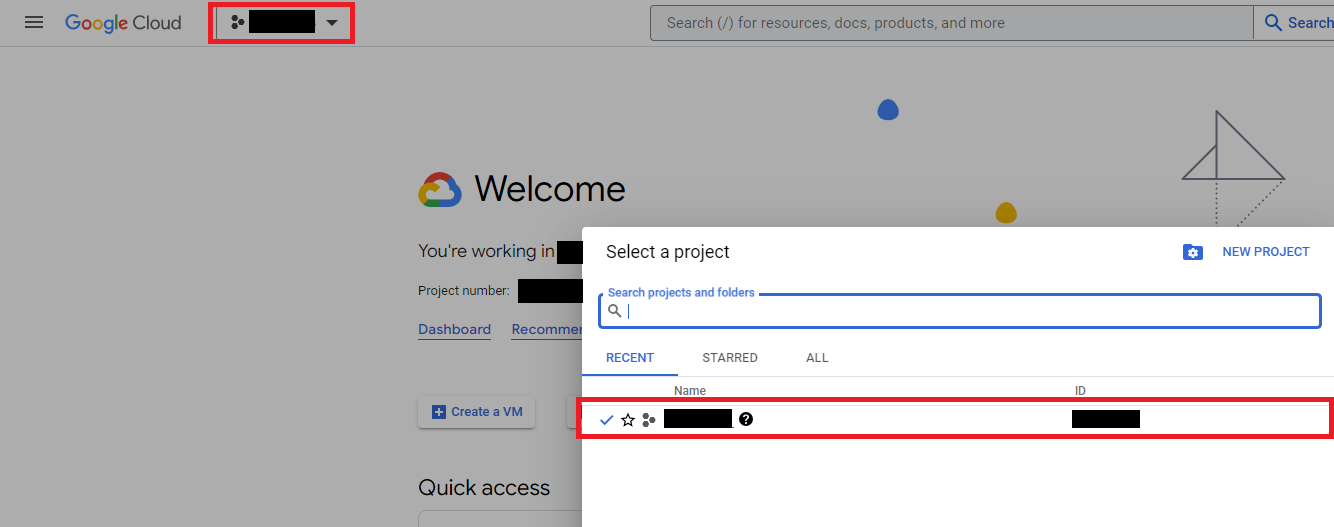
Select a project for which you want to create a service account:
-
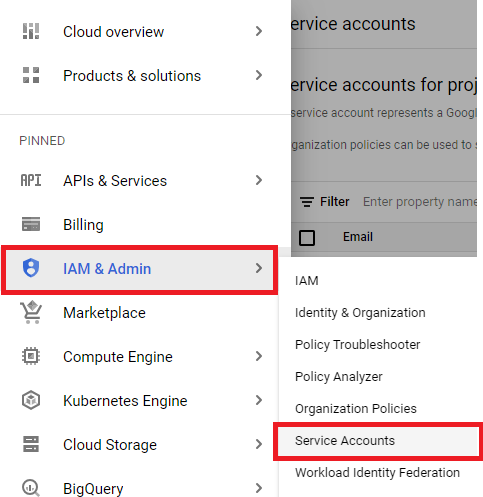
Navigate to IAM & Admin → Service Accounts:
-
Click + CREATE SERVICE ACCOUNT:

-
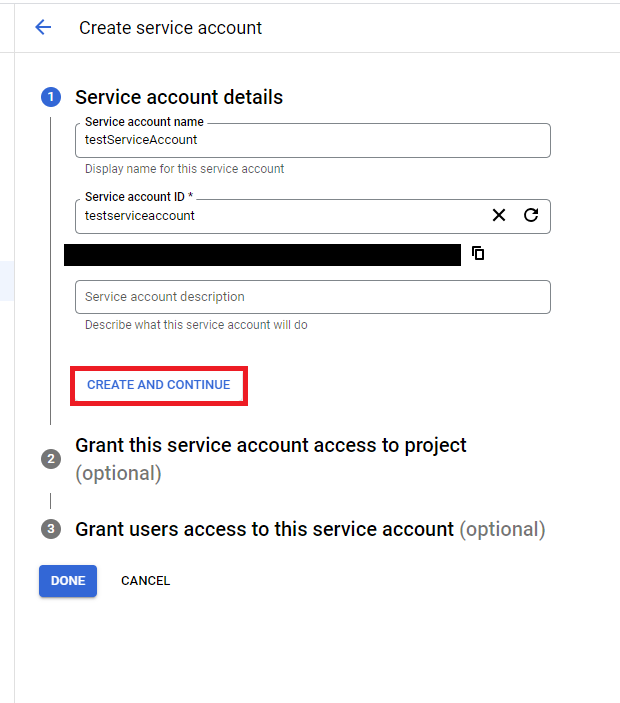
Give it a name and click CREATE AND CONTINUE:
-
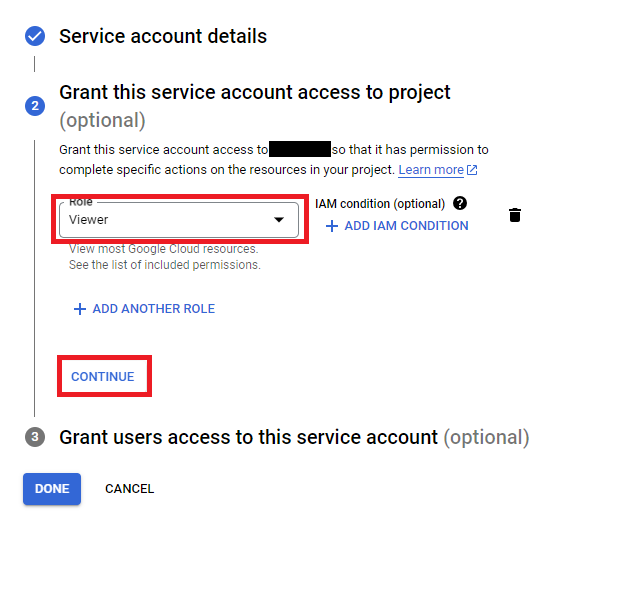
Select the custom role you created in the previous step for the account, then click CONTINUE:
-
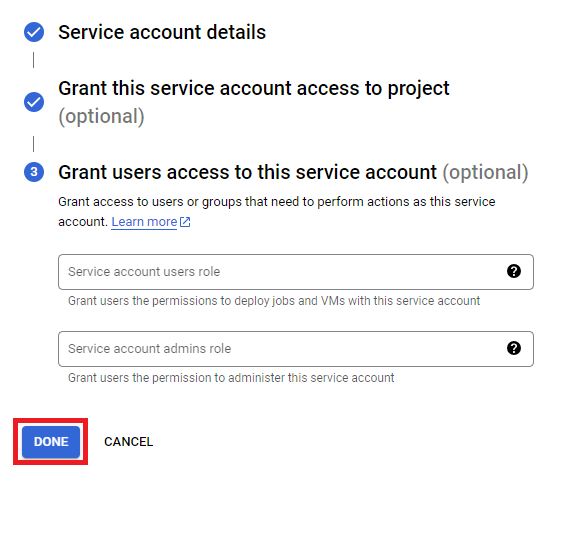
In the last step, simply click DONE:
-
Search for the account that was just created and select it:

-
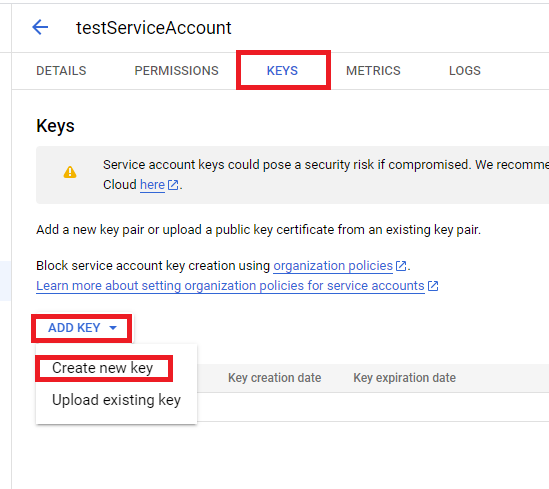
Navigate to the KEYS tab, click ADD KEY, and select
Create new key. (You can use your own key, but the properties must be the same as when you generate it. Therefore, it is highly recommended to use theCreate new keyoption.) -
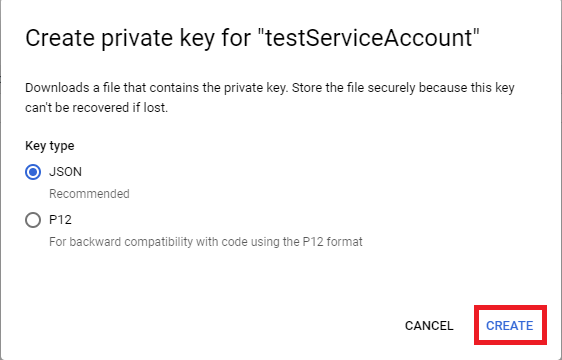
The key type we support is
JSON. Click CREATE, and the private key will be downloaded to your computer.
Grant the Service Account Access to Your Organization
-
Select your organization. (Alternatively, you can perform this step within individual projects.):
-
Navigate to IAM & Admin → IAM, and click Grant access:
-
Enter the Service Account email address and assign the custom role:
How To Load the JSON Key to IP Fabric
-
In the IP Fabric GUI, navigate to Settings → Discovery & Snapshots → Discovery Settings → Vendors API, and click + Add:

-
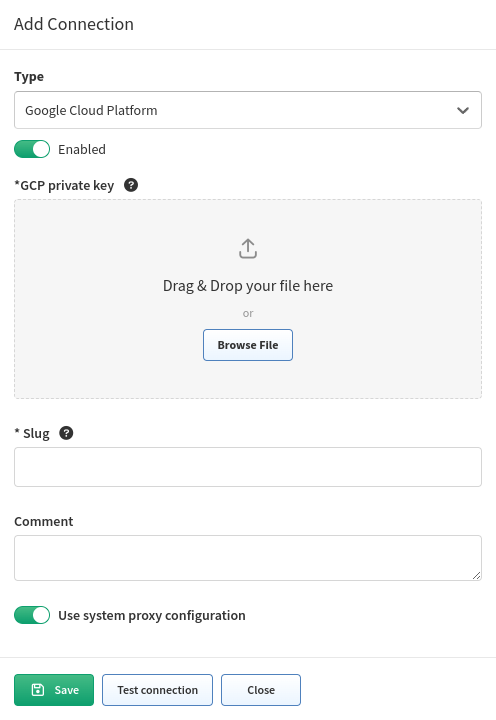
Select
Google Cloud Platformfrom the list. -
Move your key to the Drag&Drop area or select it from your computer, and enter the other required information:
What Counts Against IP Fabric License
See Licensing – GCP.