Cisco Meraki
Since version 3.5.0, IP Fabric supports API-based discovery for Cisco Meraki.
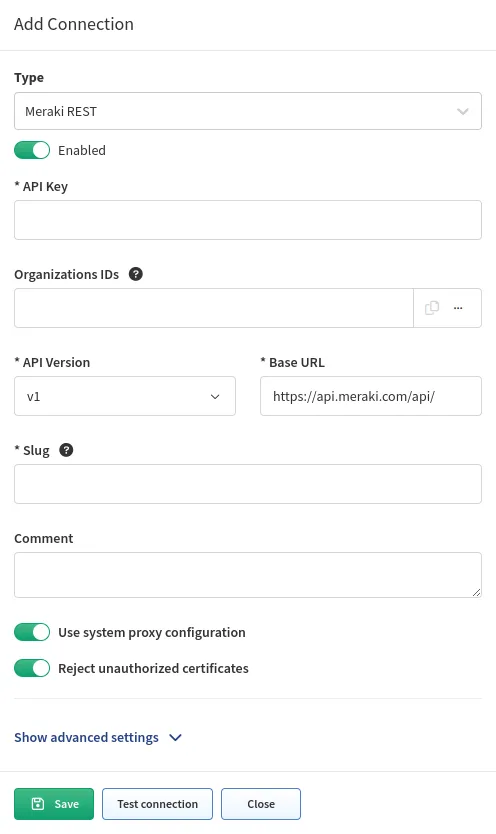
To add Cisco Meraki to the global discovery settings, go to Settings →
Discovery & Snapshots → Discovery Settings → Vendors API, click + Add,
select Meraki REST from the list, and fill in:
- API key – Generated in the Meraki Dashboard.
- Organizations ID – You can specify which organization will be included in the discovery process. If you do not specify that, all available IDs will be used.
- Version – Only
v1is supported since IP Fabric5.0. Similarly to the originalv0, even the latest API version has a lot of limitations (Meraki known issues). - Base URL – URL of the Meraki Dashboard API (e.g.,
https://api.meraki.com/apiorhttps://nXYZ.meraki.com/api). For organizations hosted in the China Dashboard, please use.cninstead of.com. - Slug
Filtering Options
You can limit Meraki discovery to a specific subset of devices by using
Filtering options in the Meraki REST configuration.
These filters help scope API-based discovery when you only want to collect devices from selected networks, platforms, or tags.
Supported Fields
You can build Meraki filtering rules from the following fields:
Network IDPlatformTag
Supported Operators
Each filter rule supports:
- exact matching:
equalandnot equal - regex matching with the
regexoperator
You can combine rules and groups with And / Or logic.
How the Filters Work
- IP Fabric evaluates filters only for the configured
Meraki RESTVendor API instance. - You can group rules to build more specific discovery scopes.
Andmeans all rules in the group must match.Ormeans any matching rule or group is enough.- Regex rules match patterns instead of single fixed values.
Expected Results
- With no filters, IP Fabric discovers all Meraki devices available through the configured organization IDs.
- With Filtering Options enabled, IP Fabric discovers only devices matching the configured scope.
- If you use exclusion with
not equalor regex logic, IP Fabric excludes devices outside the matching scope.
Review your filter logic carefully before starting discovery, especially when combining groups with And and Or.
Login IP for Cisco Meraki
For CLI (SSH/Telnet) discovery, the Login IP represents the IP address that the platform uses to discover the device. IP Fabric discovers Cisco Meraki via API, and therefore, different logic described below is used to assign the Login IP parameter for Meraki devices in the main inventory.
LAN IP is considered to have the highest priority.
------- key --> 'lanIp'
wan1Ip has the 2nd highest priority.
------- key --> 'wan1Ip'
wan2Ip has the 3rd highest priority.
------- key --> 'wan2Ip'
publicIp has the lowest priority.
------- key --> 'publicIp'
Info
The publicIp parameter can have duplicate values across the inventory as more devices can be accessed via the same public IP address. It can also be inaccurate (e.g., when the WAN circuit fails to the secondary circuit) because it can take quite a long time to refresh the device’s public IP address in the Dashboard.
To understand what is being sent from the Meraki Dashboard, we need to investigate the Discovery Snapshot and download the Tasker file or log file from the device:
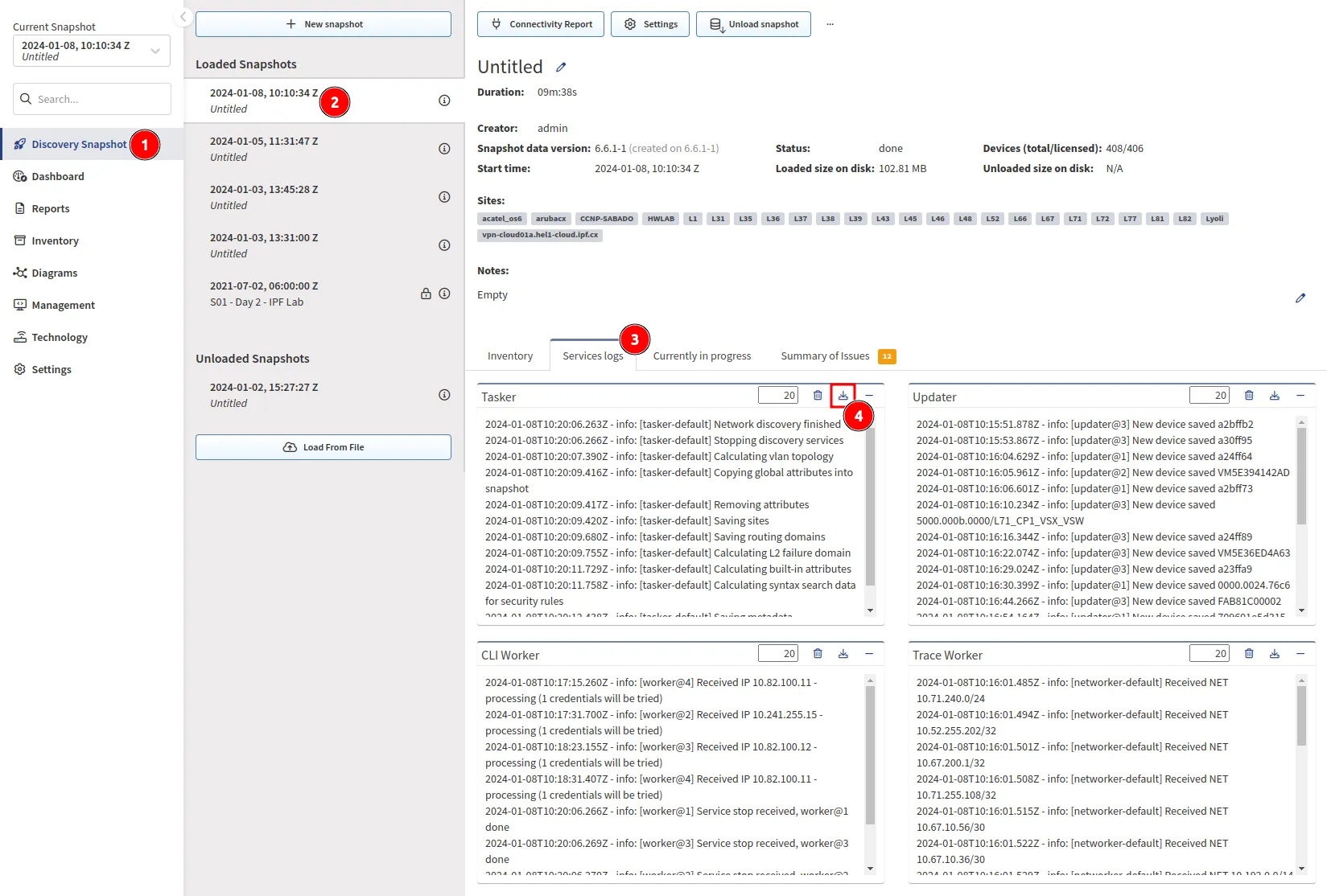
The Tasker file contains complete communication between IP Fabric and the Meraki Dashboard. We can use the device hostname to locate the JSON source:
{
   "name":"mx01-dl1",
   "serial":"Q2QN-Q6EY-NP7J",
   "mac":"0c:8d:db:b0:c2:dc",
   "networkId":"L_783626335162466320",
   "model":"MX65",
   "address":"",
   "lat":37.4180951010362,
   "lng":-122.098531723022,
   "notes":"",
   "tags":"",
   "wan1Ip":"192.168.128.4",
   "wan2Ip":null,
   "configurationUpdatedAt":"2022-03-05T15:07:48Z",
   "firmware":"wired-15-44",
   "url":"https://XXX.meraki.com/DevNetLab-applia/n/xaNlkcig/manage/nodes/new_list/456789654858"
}