Azure
To add Azure devices to the global discovery settings, go to Settings →
Discovery & Snapshots → Discovery Settings → Vendors API, click + Add,
and select Azure from the list.
IP Fabric requires the following to connect to the Azure API:
- Tenant ID
- Client ID (application ID)
- Client Secret (application secret)
Since version 6.7, the Subscription IDs field is optional. Leave it empty to discover all available subscriptions within the same tenant.
Follow these steps to get the required data.
First, log in to the Azure portal.
Register an App
Search for Active Directory.
- From the left menu, click App registrations, then click +New registration.
- Fill in the name of the application (e.g.,
IP Fabric). From the Supported account types, select the first option, Single Tenant. Leave the other options blank. - Once you click Register, you’ll be redirected to the App overview page. Note the Application (client) ID and Directory (tenant) ID.
- Click Certificates & Secrets and select the Client secrets (0) tab, click + New secret, select Expiration, and then click Add.
- Copy the created client secret to the clipboard (column Value). You won’t be able to see it again.
Subscription & Access Control
Search for Subscriptions and select the subscription you like to add to IP Fabric (IP Fabric can do discovery per subscription).
- On the overview page, note the Subscription ID.
-
From the left menu, click Access control (IAM), click + Add, and then Add custom role. Fill in the role name. IP Fabric requires specific permissions to make API calls. Select Start from JSON and upload the JSON file with the required permissions (find details at the very bottom of this page). Click the Next button to continue.
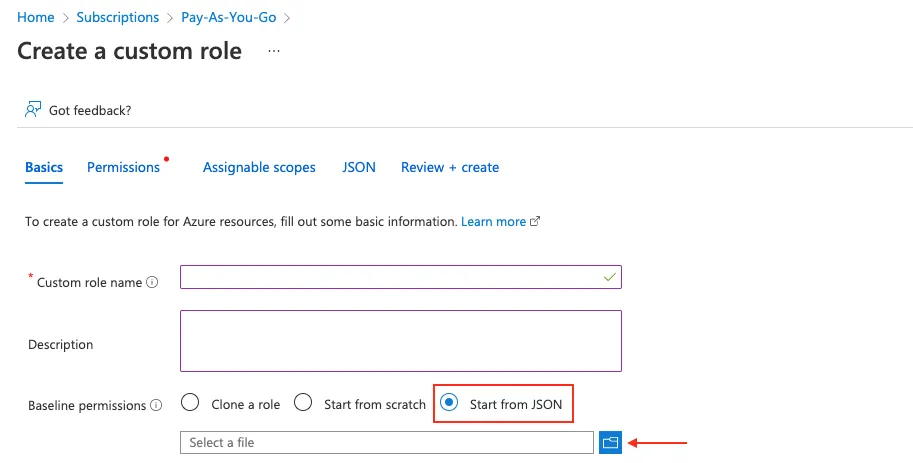
-
Review the permissions and click Next. Now you must assign a scope for this role. Click Add assignable scopes and from the right panel, select Type: Subscription, and then click the Subscription you want to assign.

-
Click Review + Create.
- Now you must assign the newly created Role to the Registered App. From the left menu, select Access control (IAM) again, then click + New and Add role assignment.
-
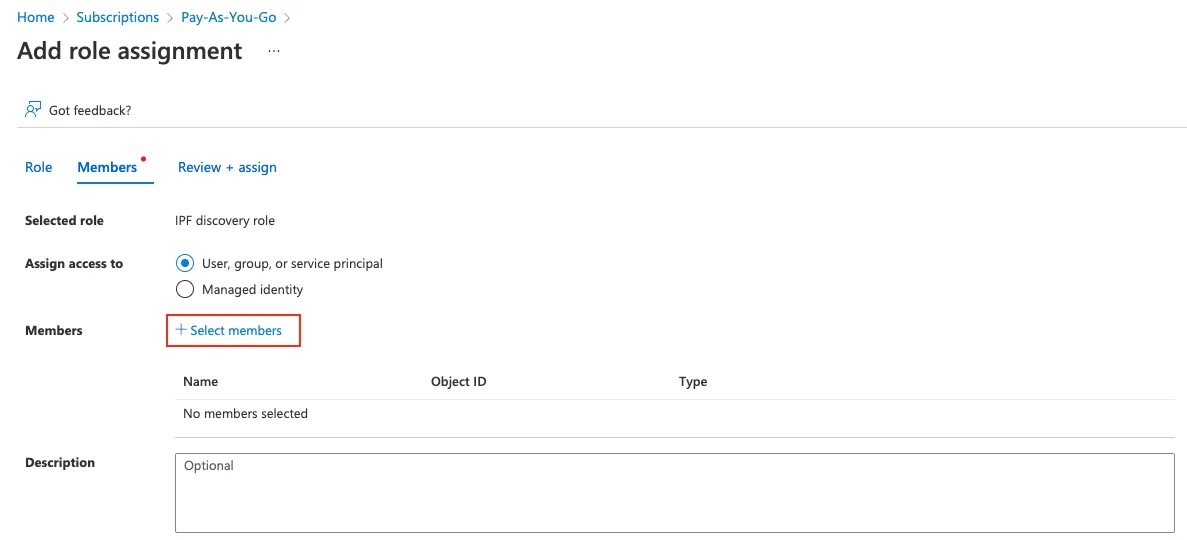
Find the previously created role, click Next, and then click + Select members. Find the app you created before. Click Review + Assign.
Management Group Access
Since version 7.12, IP Fabric requires read access to management groups to build a resource hierarchy. This requires a second custom role with two permissions:
Microsoft.Management/managementGroups/readMicrosoft.Management/managementGroups/descendants/read
Azure only grants these permissions when the role is assigned at the management group scope, not at the subscription scope. So a separate custom role is needed for this.
Why not the built-in Management Group Reader role?
The built-in Azure Management Group Reader role does not include Microsoft.Management/managementGroups/descendants/read.
Create the Management Group Reader Role
- In the Azure portal, search for Management groups and open the management group you want to use as the scope.
- From the left menu, click Access control (IAM), then + Add → Add custom role.
- Select Start from JSON, upload
azure-mgmt-group-reader.json(find details at the bottom of this page), and click Review + Create. - Back in Access control (IAM), click + Add → Add role assignment, find the new role, and assign it to the registered app.
Role Definitions for IP Fabric
The following JSON applies to IP Fabric version 7.12 and above:
{
    "properties": {
        "roleName": "IPF discovery role 7.12",
        "description": "Permissions needed for IP Fabric to discover Azure network infrastructure",
        "assignableScopes": [],
        "permissions": [
            {
                "actions": [
                    "Microsoft.Compute/*/read",
                    "Microsoft.DBforMySQL/*/read",
                    "Microsoft.DBforPostgreSQL/*/read",
                    "Microsoft.Network/*/read",
                    "Microsoft.Resources/*/read",
                    "Microsoft.Sql/*/read",
                    "Microsoft.Web/*/read",
                    "microsoft.app/*/read",
                    "Microsoft.Network/applicationGateways/backendhealth/action",
                    "Microsoft.Network/applicationGateways/getBackendHealthOnDemand/action",
                    "Microsoft.Network/azurefirewalls/learnedIPPrefixes/action",
                    "Microsoft.Network/connections/getikesas/action",
                    "Microsoft.Network/loadBalancers/backendAddressPools/health/action",
                    "Microsoft.Network/loadBalancers/health/action",
                    "Microsoft.Network/loadBalancers/loadBalancingRules/health/action",
                    "Microsoft.Network/networkInterfaces/effectiveNetworkSecurityGroups/action",
                    "Microsoft.Network/networkInterfaces/effectiveRouteTable/action",
                    "Microsoft.Network/virtualHubs/effectiveRoutes/action",
                    "Microsoft.Network/virtualNetworkGateways/getbgppeerstatus/action",
                    "Microsoft.Network/virtualNetworkGateways/getlearnedroutes/action",
                    "microsoft.network/vpngateways/getbgppeerstatus/action",
                    "microsoft.network/vpngateways/getlearnedroutes/action",
                    "Microsoft.Network/vpnGateways/vpnConnections/vpnLinkConnections/getikesas/action"
                ],
                "notActions": [],
                "dataActions": [
                    "Microsoft.KeyVault/vaults/certificates/read"
                ],
                "notDataActions": []
            }
        ]
    }
}
To enable management group access, create and assign the following role at the management group scope:
{
    "properties": {
        "roleName": "IPF Management Group Reader",
        "description": "Allows IP Fabric to read management group hierarchy for resource context",
        "assignableScopes": [],
        "permissions": [
            {
                "actions": [
                    "Microsoft.Management/managementGroups/read",
                    "Microsoft.Management/managementGroups/descendants/read"
                ],
                "notActions": [],
                "dataActions": [],
                "notDataActions": []
            }
        ]
    }
}
What Counts Against IP Fabric License
See Licensing – Azure.