Applications
AIM License Required
Application Infrastructure Mapping (AIM) is a premium add-on. The features described here are available only when the uploaded product license has the AIM feature enabled – see go.ipfabric.io/aim for what it covers.
To get started with AIM, contact your Customer Success Manager or email support.ipfabric.io, then upload the reissued license file.
Inventory → Applications adds application-level context to the network data IP Fabric already collects. It presents Application Infrastructure Mapping (AIM) data as four tables:
| Tab | Contents |
|---|---|
| Applications | The applications known to IP Fabric, with workload, flow, and device counts. |
| Workloads | The endpoints that make up each application, with their interface addresses. |
| Flows | Observed communication, typically between two workloads. |
| Devices | The network devices a flow’s traffic traverses. |
The data comes from a third-party integration such as Illumio, from records maintained in the Discovery Settings, or from the AIM API. Configuring those sources is described in Application Mapping.
Without an AIM License
Without the AIM feature on the license, the page shows an overview of the capability instead of the four tables.
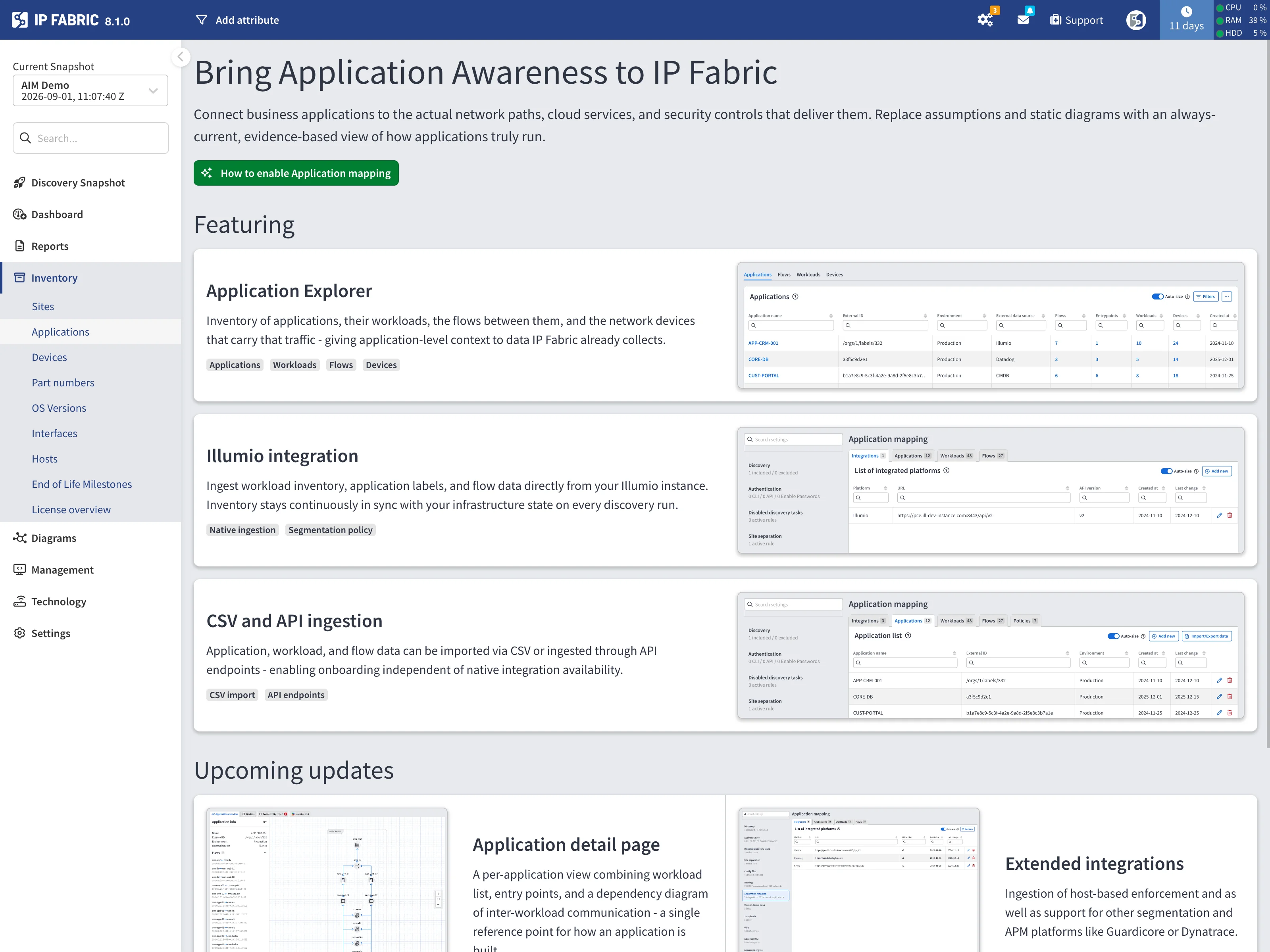
The overview explains what Application mapping does – connecting business applications to the network paths, cloud services, and security controls that deliver them – and is split into two groups:
- Featuring – what is available today: the Application Explorer (applications, workloads, flows, and devices), the Illumio integration for native ingestion, and CSV and API ingestion for onboarding without a native integration.
- Upcoming updates – what is planned: a per-application detail page with a workload dependency diagram, ingestion from further segmentation and application-monitoring platforms, connectivity and path analysis at the application-flow level, and intent and risk validation aggregated per application.
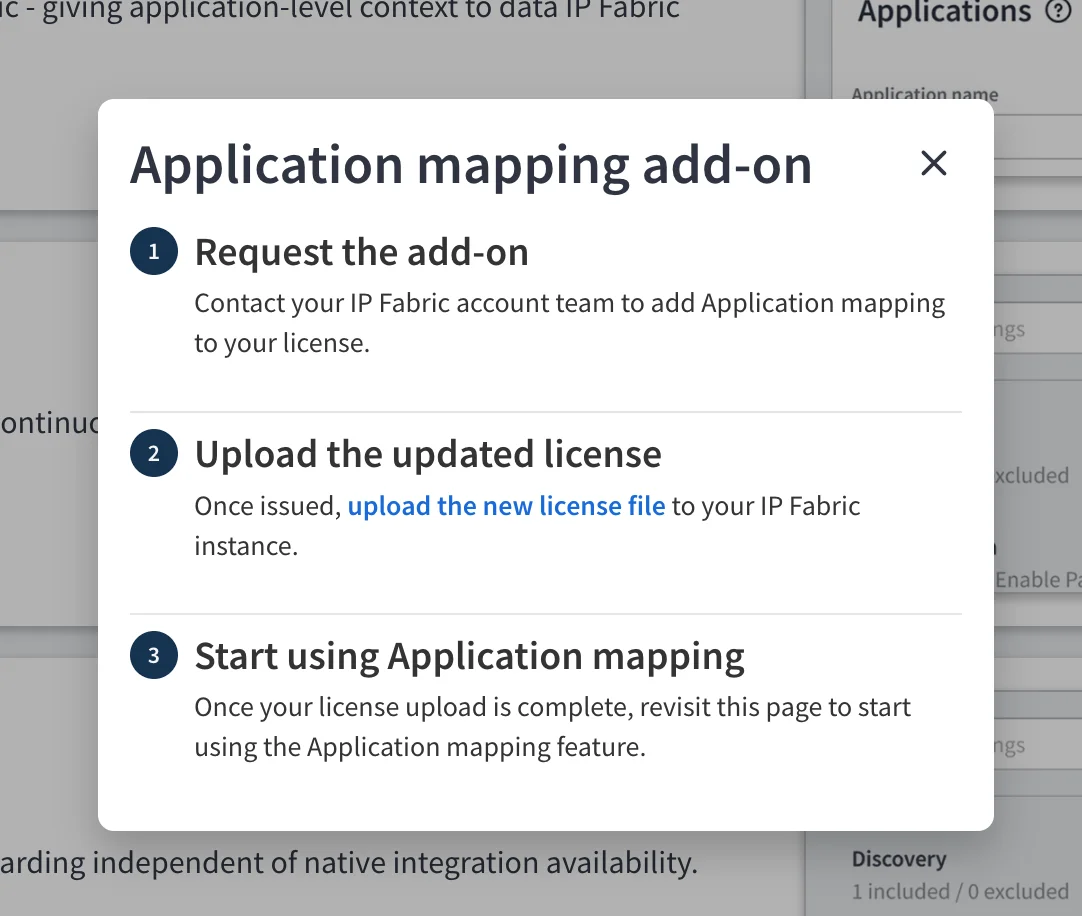
How to enable Application mapping opens the steps to follow: contact your Customer Success Manager or email support@ipfabric.io to request the add-on, upload the reissued license file, and revisit the page. The page also links to go.ipfabric.io/aim for what AIM covers. See Getting AIM.
Applications Table
One row per application.
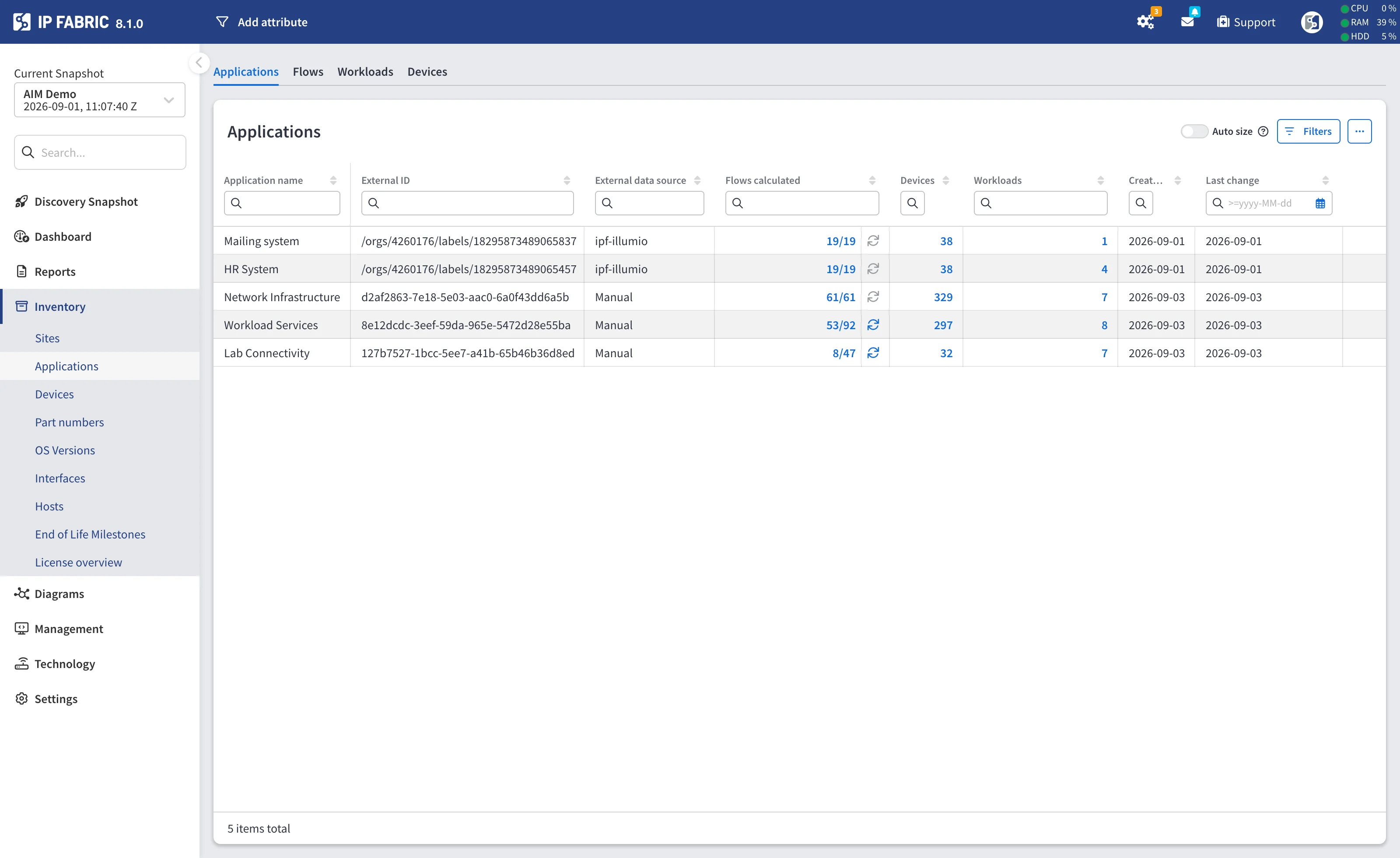
| Column | Description |
|---|---|
| Application name | The application name. |
| External ID | The identifier the source system uses for the application. |
| Environment | Environment the application belongs to. Hidden by default – enable it in the column selector. Populated for applications maintained in the Discovery Settings and for those imported from CSV; empty for applications collected through the Illumio integration. |
| External data source | Where the application came from – an integration, or the manual source for data you maintain yourself. |
| Flows calculated | How many of the application’s flows have a calculated path-lookup, out of its total flows. Also carries the calculation trigger – see Calculating Devices. |
| Devices | Number of network devices the application’s traffic traverses. Links to the Devices tab filtered to this application. |
| Workloads | Number of workloads. Links to the Workloads tab filtered to this application. |
| Entrypoints | Reserved for a future release. |
| Created at | When the record was first ingested. |
| Last change | When the record was last updated. |
Once at least one flow has been calculated, the Flows calculated fraction is itself a link to this application’s flows.
- in the Devices column
A dash means no path-lookup has been calculated yet, which is different from
a calculated result of zero traversed devices. A genuine 0 is shown as a
number.
Workloads Table
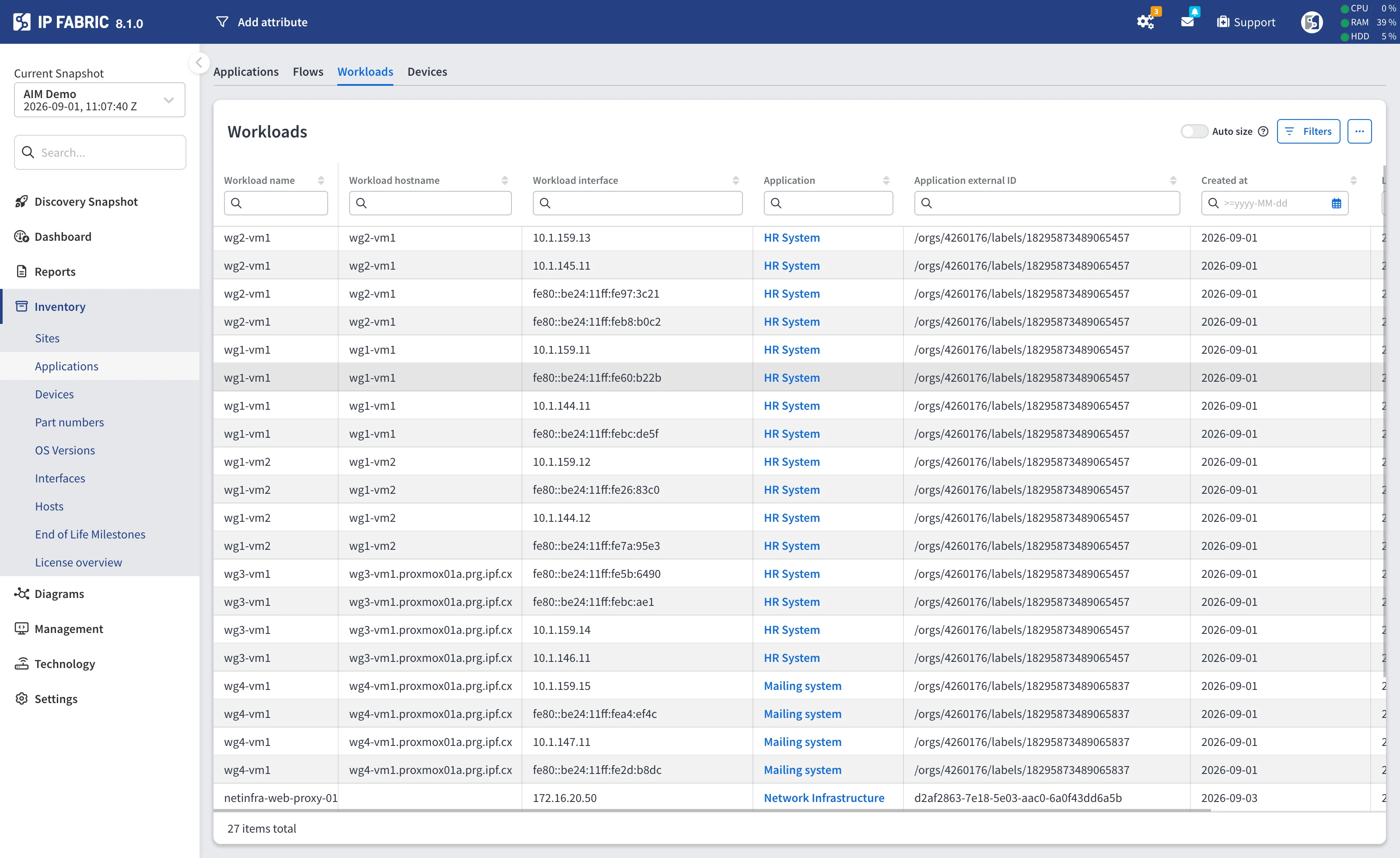
One row per workload interface, so a workload with two interface addresses appears twice, differing only in Workload interface.
| Column | Description |
|---|---|
| Workload name | The workload name. |
| Workload hostname | The workload’s hostname, when known. |
| Workload interface | An IP address of the workload. |
| Application | The owning application. Links to the Applications tab. |
| Application external ID | The owning application’s external identifier. |
| Created at | When the record was first ingested. |
| Last change | When the record was last updated. |
Flows Table
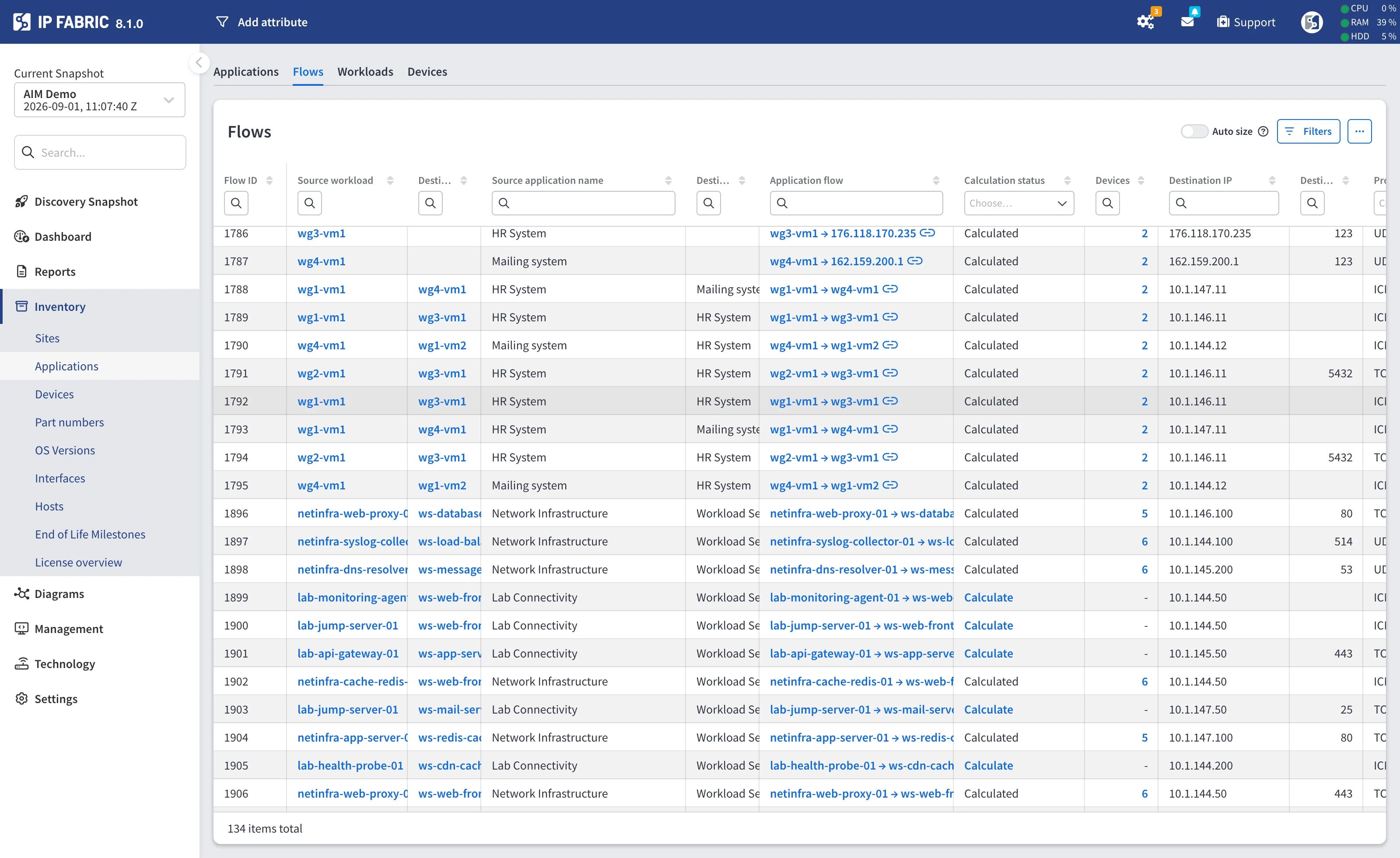
One row per flow – a communication between two workloads, or between two addresses when the source did not identify the workloads.
| Column | Description |
|---|---|
| Source workload | The workload the traffic originates from. Links to the Workloads tab. |
| Destination workload | The workload the traffic is sent to. Links to the Workloads tab. |
| Source application | The application owning the source workload. |
| Destination application | The application owning the destination workload. |
| Application flow | Source and destination endpoints of the flow, by workload name or by IP address when the workload is unnamed. Links to the path-lookup diagram – see Opening the Path as a Diagram. |
| Calculation status | Whether this flow’s path-lookup has been calculated. Also carries the calculation trigger – see Calculating Devices. |
| Devices | Number of network devices this flow traverses. Links to the Devices tab filtered to this flow. |
| Source IP / Destination IP | The flow’s endpoint addresses. |
| Source port / Destination port | The flow’s ports, when the source provides them. |
| Protocol | The flow’s IP protocol. |
| Created at | When the record was first ingested. |
| Last detected | When the source last observed the flow. |
A flow spans two applications
A flow’s source and destination workloads can belong to different applications, so the same flow appears under both. Calculating it from one application therefore also completes it for the other.
Devices Table
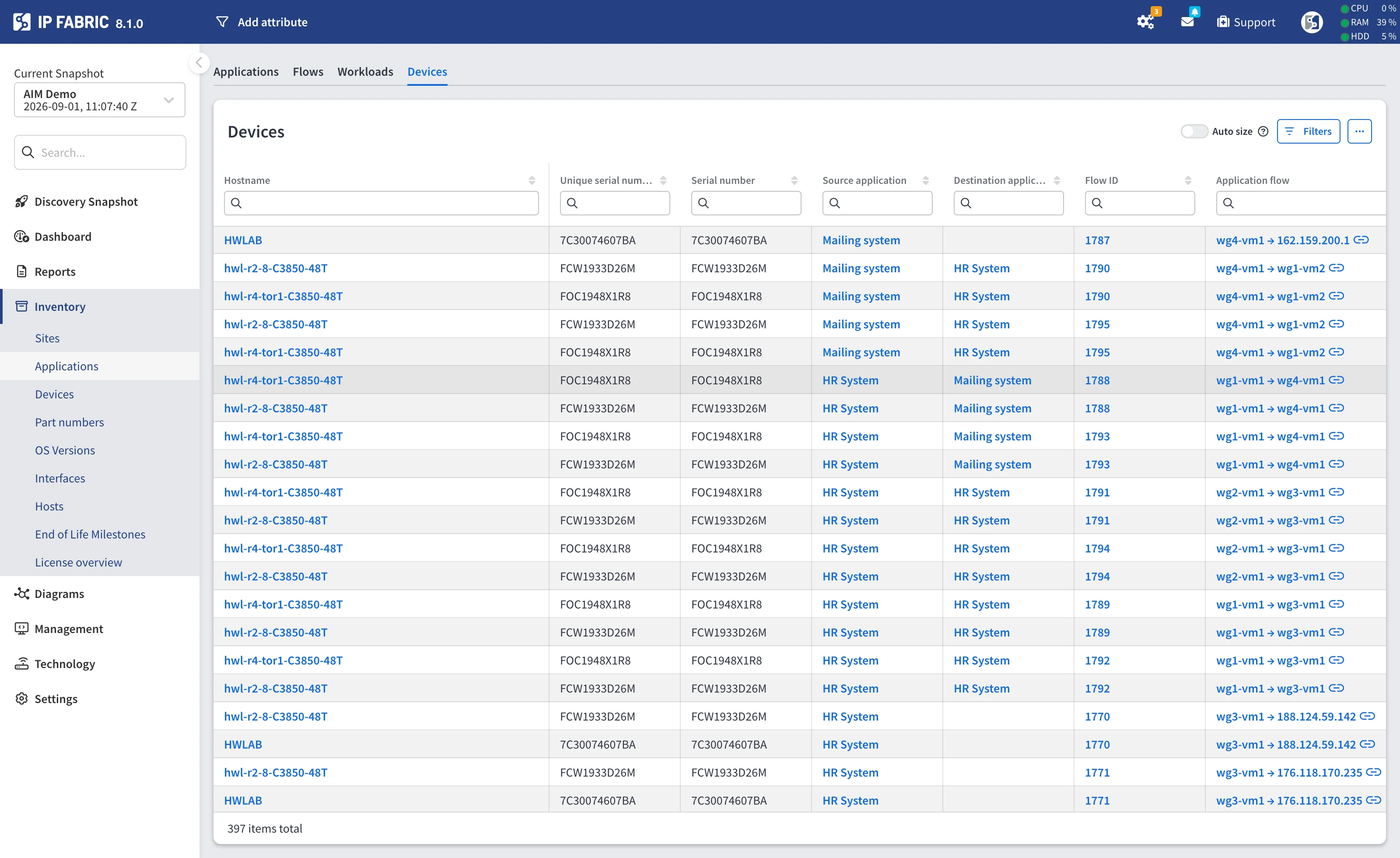
The network devices that application traffic traverses. This table is populated only by the path-lookup calculation – ingesting AIM data does not fill it.
| Column | Description |
|---|---|
| Hostname | The network device’s hostname. |
| Unique serial number | The serial number IP Fabric assigns to the device. |
| Serial number | The device’s hardware serial number. |
| Source application | The application owning the flow’s source workload. Links to the Applications tab. |
| Destination application | The application owning the flow’s destination workload. Links to the Applications tab. |
| Flow ID | Internal identifier of the flow whose path traverses this device. Links to the Flows tab filtered to that flow. |
| Application flow | Source and destination endpoints of the flow. Links to the path-lookup diagram. |
| Source IP / Destination IP | The flow’s endpoint addresses. |
| Source port / Destination port | The flow’s ports. |
| Protocol | The flow’s IP protocol. |
Rows represent flow-and-device pairs, so a device that carries several flows appears once per flow. Filtering by application matches flows whose source or destination workload belongs to that application, which is what the links from the Applications table do.
When nothing has been calculated yet, the table explains where to start:
No device data yet. Use the refresh button in the Flows calculated column of the Applications table, or the Calculate link in the Calculation status column of the Flows table, to collect it.
Calculating Devices
Identifying the devices a flow traverses is an on-demand calculation. It runs a path lookup for the flow and stores the devices it passes through. You can start it at two levels:
| From | Column | Trigger | Scope |
|---|---|---|---|
| Applications table | Flows calculated | Refresh button beside the fraction | Every flow of that application. |
| Flows table | Calculation status | Calculate link | That single flow. |
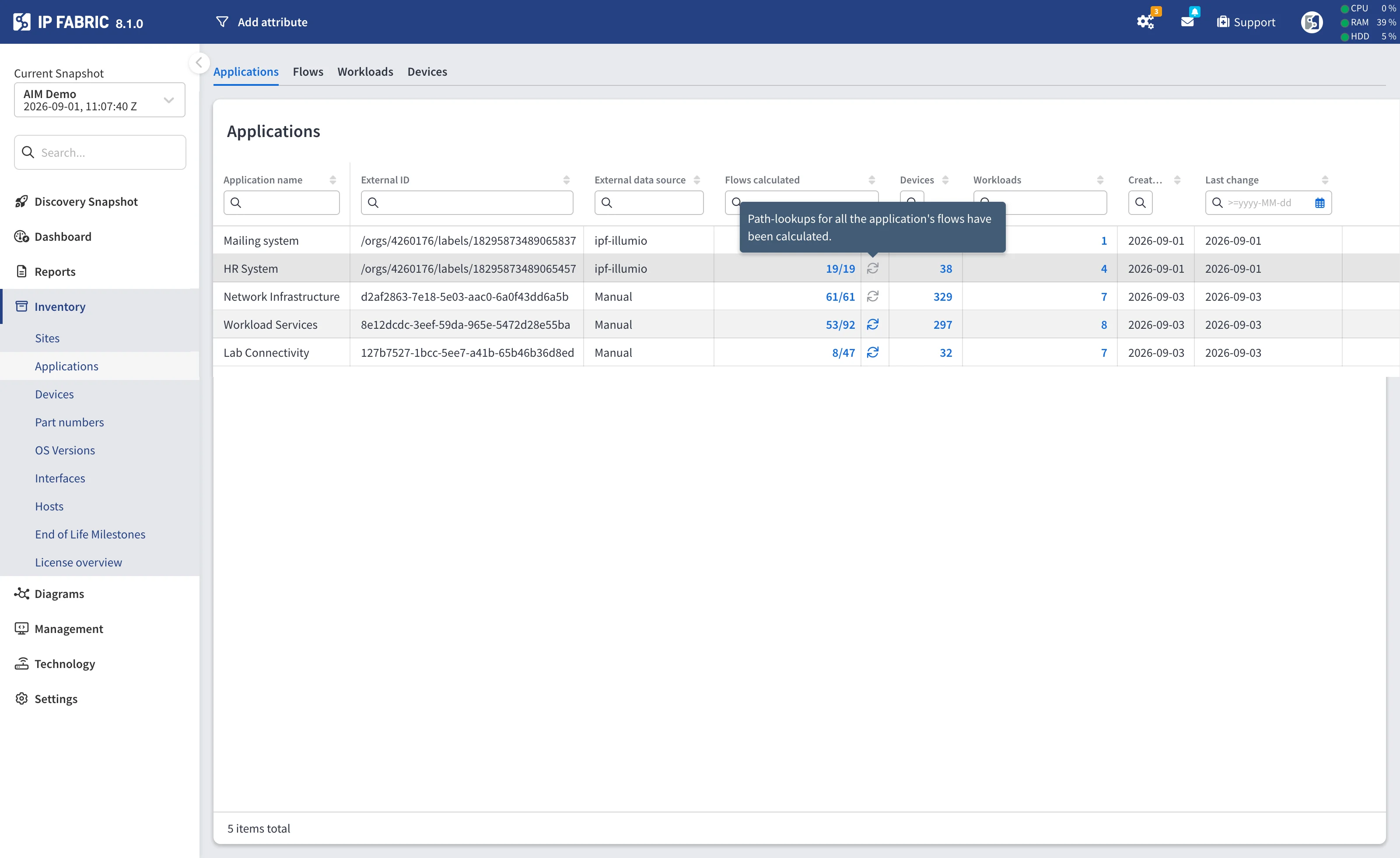
The calculation runs in the background. When it finishes, a notification reports the result and links to the Devices tab filtered to the application you started it from.
As flows complete, the Flows calculated fraction rises, Calculation status changes to Calculated, and the Devices counts fill in.
When the Trigger Is Unavailable
On the Applications table the refresh button is disabled, with the reason shown on hover:
- This application has no flows to calculate. – the application has no flows.
- Path-lookups for all the application’s flows have been calculated. – nothing is left to do.
On the Flows table a calculated flow shows the word Calculated instead of the link, tooltipped All path-lookups for this flow have been calculated.
A calculated result cannot go stale
Within a snapshot there is no reason to recalculate: the topology a path-lookup runs against only changes with a new snapshot, and a new snapshot starts with nothing calculated. That is why the trigger disappears once a flow is done rather than offering a refresh.
Opening the Path as a Diagram
The Application flow column in both the Flows and the Devices tables links to the path-lookup diagram, pre-filled from the flow’s own five-tuple – source and destination IP, protocol, and ports.
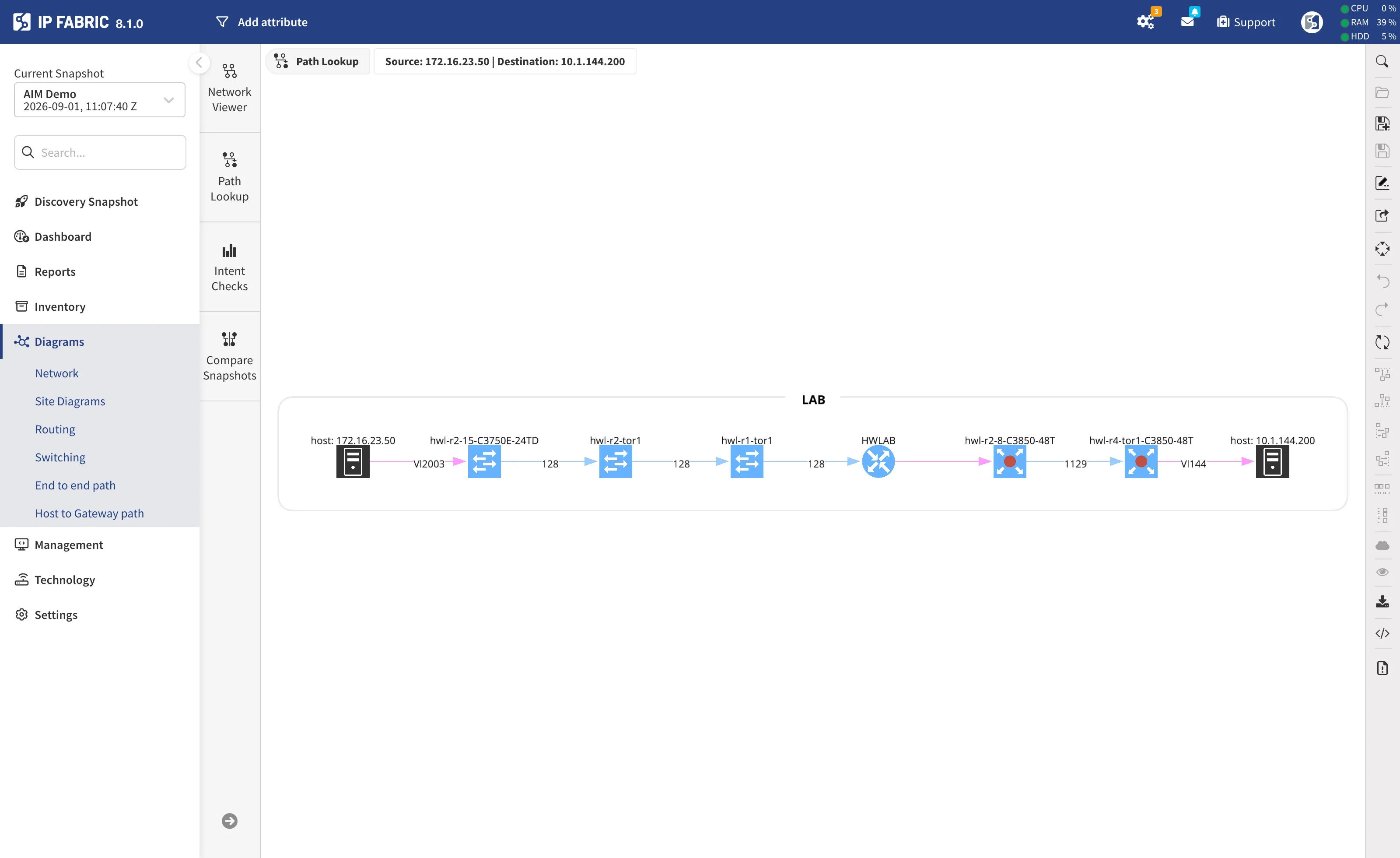
Ports the source left unspecified are submitted as the full ephemeral range
1024-65535. Protocols are mapped to their path-lookup equivalents: ICMP, TCP,
UDP, and ICMPv6.
A flow missing a source or destination IP or a protocol, or carrying a protocol the simulation engine does not model, cannot form a lookup – for those rows the cell stays plain text with no link.
Related Documentation
- Application Mapping – configuring the integrations and manual records that feed these tables.
- Application Infrastructure Mapping API – reading these tables and starting path-lookup calculations over the API.