Application Mapping
AIM License Required
Application Infrastructure Mapping (AIM) is a premium add-on. The features described here are available only when the uploaded product license has the AIM feature enabled – see go.ipfabric.io/aim for what it covers.
To get started with AIM, contact your Customer Success Manager or email support.ipfabric.io, then upload the reissued license file.
Application Infrastructure Mapping (AIM) correlates your application inventory – applications, workloads, workload interfaces, and flows – with the network model that IP Fabric discovers.
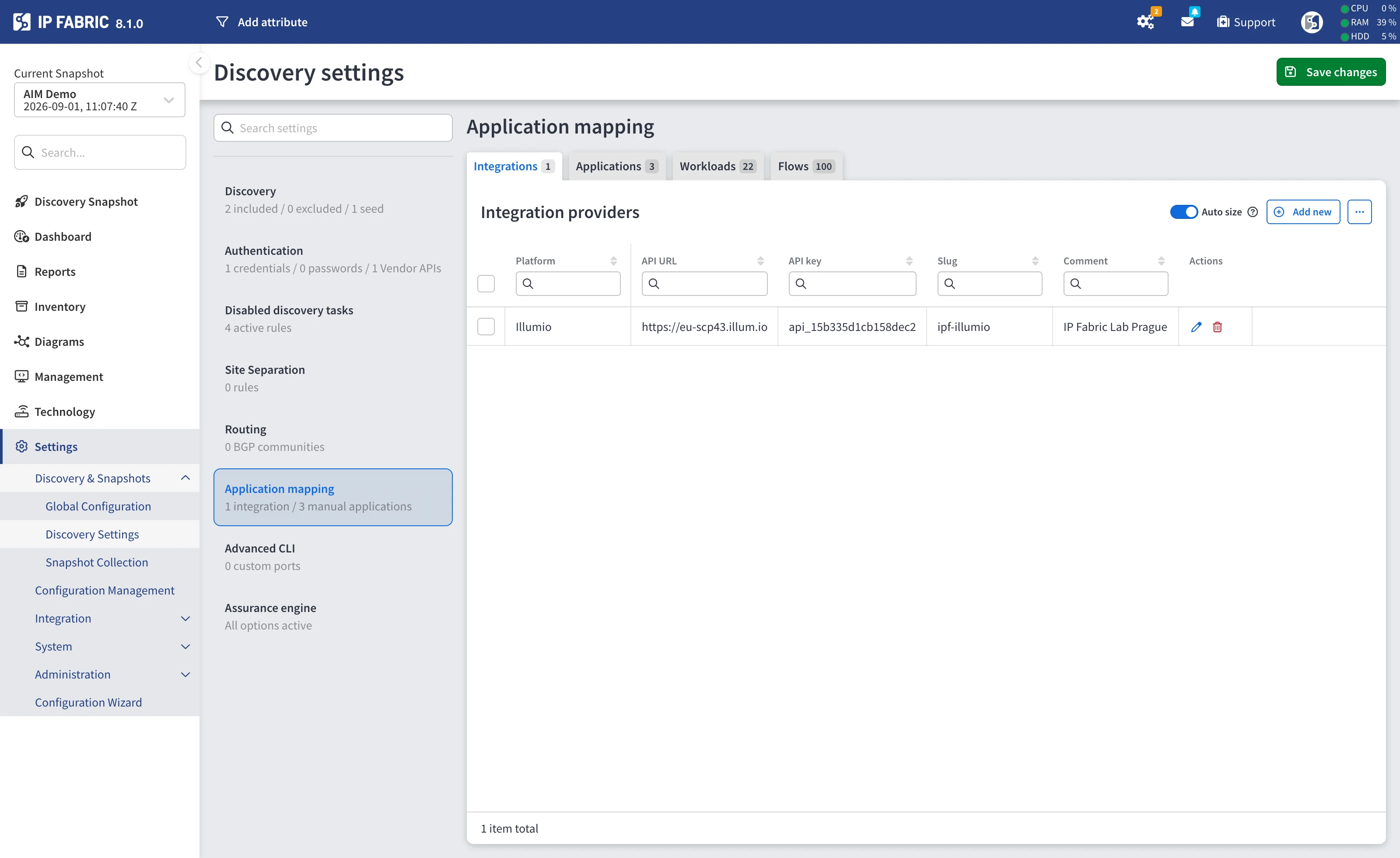
The data that feeds AIM is configured in Settings → Discovery & Snapshots → Discovery Settings → Application mapping. The section holds two distinct things:
- Integrations – connections to external data providers that IP Fabric crawls during discovery. Illumio is currently supported.
- Applications, Workloads, and Flows – records you maintain directly in IP Fabric, either by filling in a form or by importing CSV files.
Both sources feed the same AIM inventory and can be used side by side.
Without the AIM feature on the license, the Application mapping menu item is hidden and the AIM inventory pages show a feature overview instead.
The menu item shows a summary of what is configured – for example
2 integrations / 5 manual applications.
Global and Snapshot Scope
Application mapping is available in two places, and they are independent:
| Scope | Where | Applies to |
|---|---|---|
| Global | Settings → Discovery & Snapshots → Discovery Settings | Every new discovery started from these settings. |
| Snapshot | The Settings of an individual snapshot | That snapshot only. |
The tabs, forms, and validation are identical in both scopes. Editing a snapshot’s settings never changes the global defaults, and changing the global settings does not retroactively alter existing snapshots.
Sub-Tabs
The section is split into four tabs, each showing a count of the records it holds:
| Tab | Contents |
|---|---|
| Integrations | Connections to external AIM data providers. |
| Applications | Manually maintained applications. |
| Workloads | Manually maintained workloads, each belonging to an application. |
| Flows | Manually maintained flows between two workloads. |
Integrations
The Integrations tab lists the external data providers IP Fabric queries for application data. The Integration providers table shows the Platform, API URL, API key, Slug, and Comment of each configured provider.
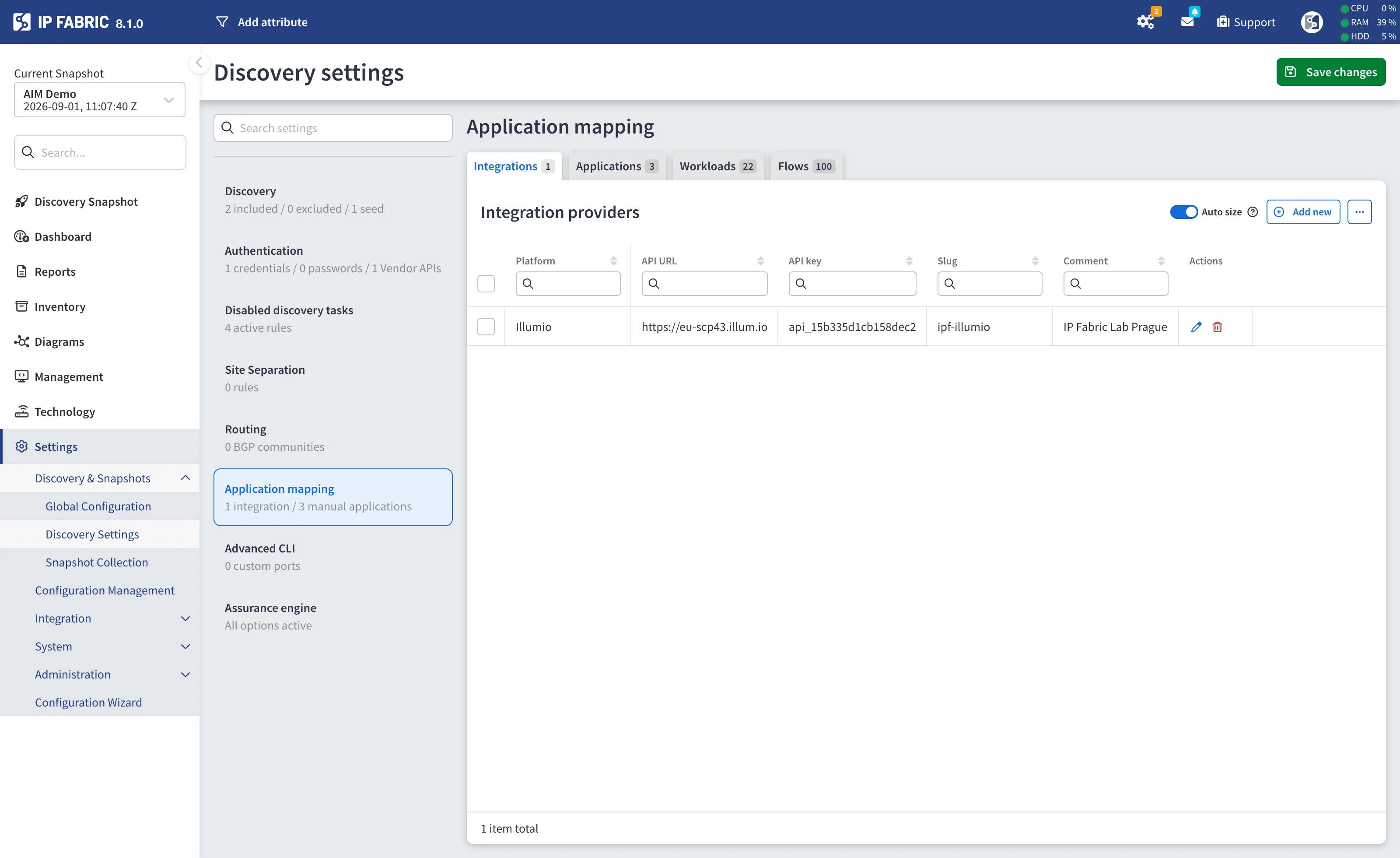
Use Add new to create a provider, the pencil icon to edit one, and the bin icon to remove one. Selecting several rows enables a bulk Delete.
Add or Edit an Integration Provider
| Field | Required | Description |
|---|---|---|
| Platform | yes | The data provider type. Illumio is currently the only supported option, so the field is preselected. |
| API URL | yes | The Illumio PCE base URL, including host and port – for example https://pce.example.com:8443. Must start with https://. |
| API key | yes | The Illumio API key ID. It is used as the authentication username. |
| API secret | yes* | The Illumio API key secret. Stored encrypted and never displayed again after saving. |
| Organization ID | yes | The Illumio PCE organization ID. It forms part of the request path IP Fabric calls. |
| Slug | yes | A short unique identifier for this configuration – for example illumio-eu. Maximum 64 characters, letters, digits, - and _ only. Must be unique across integrations. |
| Comment | no | Free-form note. |
* When editing an integration that already has a stored secret, leave API secret blank to keep the current value. The field is only mandatory when adding a provider, or when editing one that has no secret stored yet.
Illumio Requirements
To crawl an Illumio PCE, IP Fabric needs REST API access:
- An API key created in the Illumio PCE, consisting of a key ID and a secret. IP Fabric authenticates every request with these as HTTP Basic credentials – Illumio has no separate login step.
- Read access to the organization’s labels, workloads, and traffic flows, since these are what IP Fabric maps to AIM applications, workloads, and flows.
- Network reachability from the IP Fabric appliance to the PCE over HTTPS. The connection is made with certificate validation enabled, and the system proxy configuration is honoured.
Traffic flow collection is time-boxed and capped
When IP Fabric queries the PCE for traffic flows, it asks for a rolling window of the last 24 hours and caps the query at 25,000 flows. Traffic that falls outside that window, or beyond the cap, is not ingested.
Both values are fixed in this release – there is no setting for them in the integration form or anywhere else in the UI. They apply to flow collection only: applications, workloads, and their labels are not limited this way.
In practice this means the Flows tab reflects what the PCE observed over the last day, not the full history, and that a busy environment can reach the cap on a single discovery run.
Test Connection
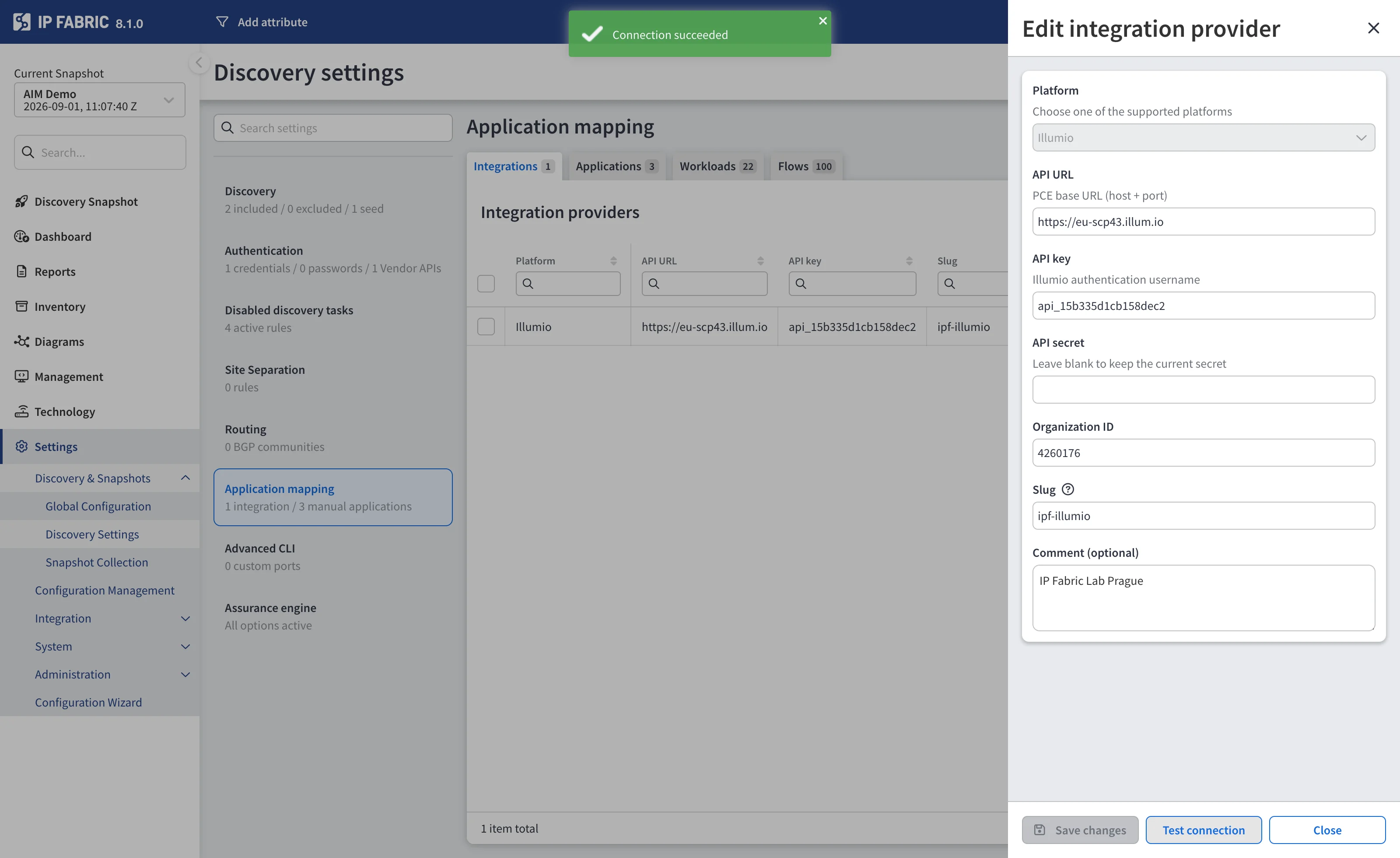
The integration dialog has a Test connection button that verifies the provider is reachable and the credentials are accepted – without saving the form and without starting a discovery.
The form is validated first, so any missing or malformed field is reported before a request is sent. The test then performs a minimal read against the PCE: a single-result label query. Because Illumio authenticates every request individually, this one call confirms reachability, credentials, and the organization ID together.
The outcome appears as a notification:
- Connection succeeded – the provider answered and accepted the credentials.
- Connection failed – with the reason reported by the appliance, for example an unreachable URL or rejected credentials.
Testing a saved provider without retyping its secret
You can test a stored integration with the API secret field left blank. The appliance reads and decrypts its own copy of the secret, so it never has to travel back through the browser. Any other field you changed in the form is still applied to the test, which lets you validate an edit – a new URL, for example – before saving it.
The same test is available over the API. See Verify an AIM Integration Connection.
When the Data Is Collected
Configured integrations are crawled as part of discovery. Adding a provider does not import anything on its own – run a new discovery, so IP Fabric queries the provider and stores the results in the resulting snapshot.
Applications, Workloads, and Flows
The remaining three tabs hold AIM data entered directly in IP Fabric, for cases where no integration exists or where you want to model an application by hand. Each tab has an Add new button, an Import data button, and per-row edit and delete actions.
The three record types form a hierarchy: a workload belongs to an application, and a flow connects two workloads.
flowchart LR
    A[Application] -->|has many| W[Workload]
    W -->|has many| I[Interface IP]
    W2[Source workload] -->|flow| W3[Destination workload]
Applications
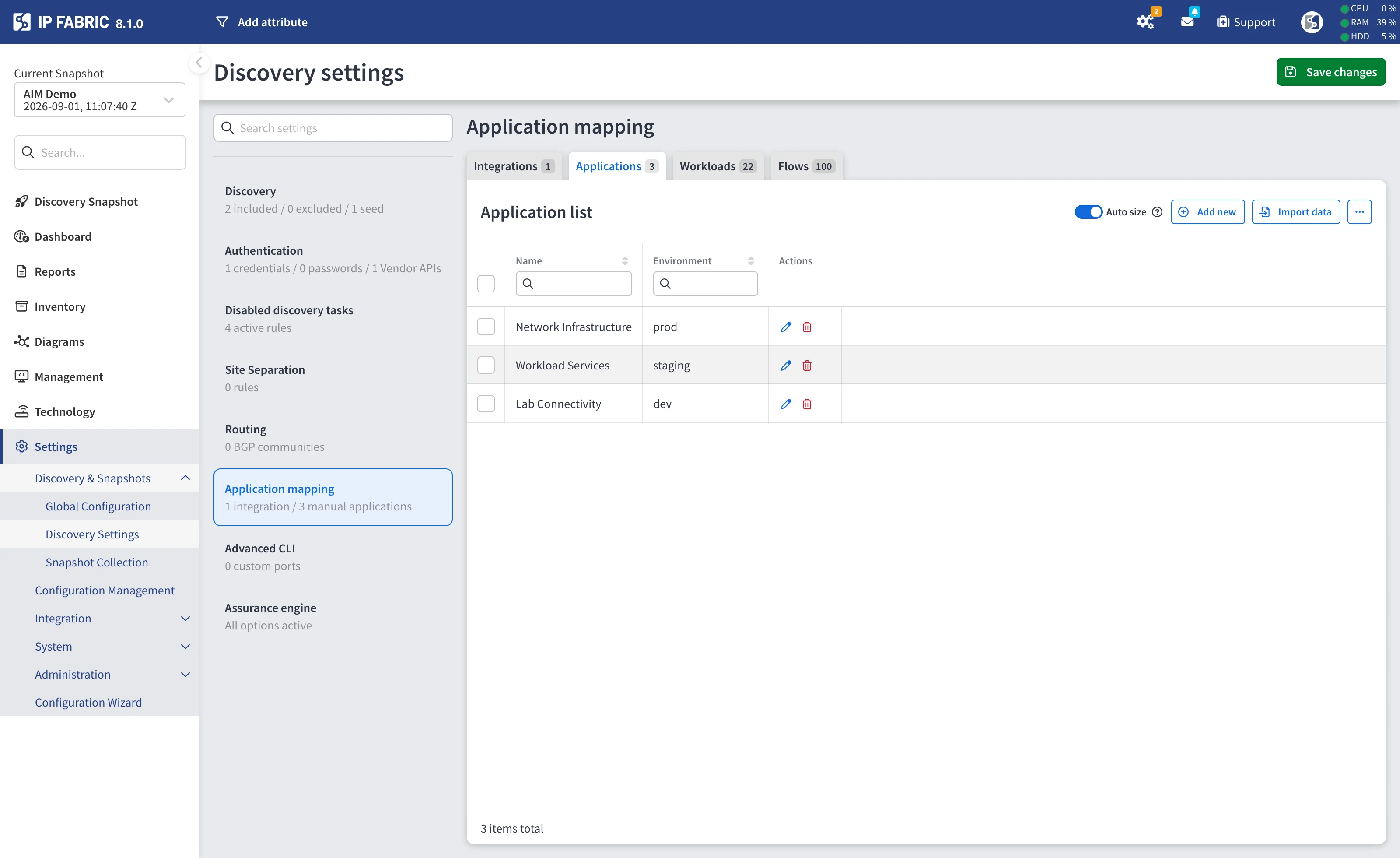
The Application list table shows Name and Environment.
| Field | Required | Description |
|---|---|---|
| Name | yes | The application name shown throughout the AIM inventory. |
| Environment | no | Free-text environment label, for example prod. |
Workloads
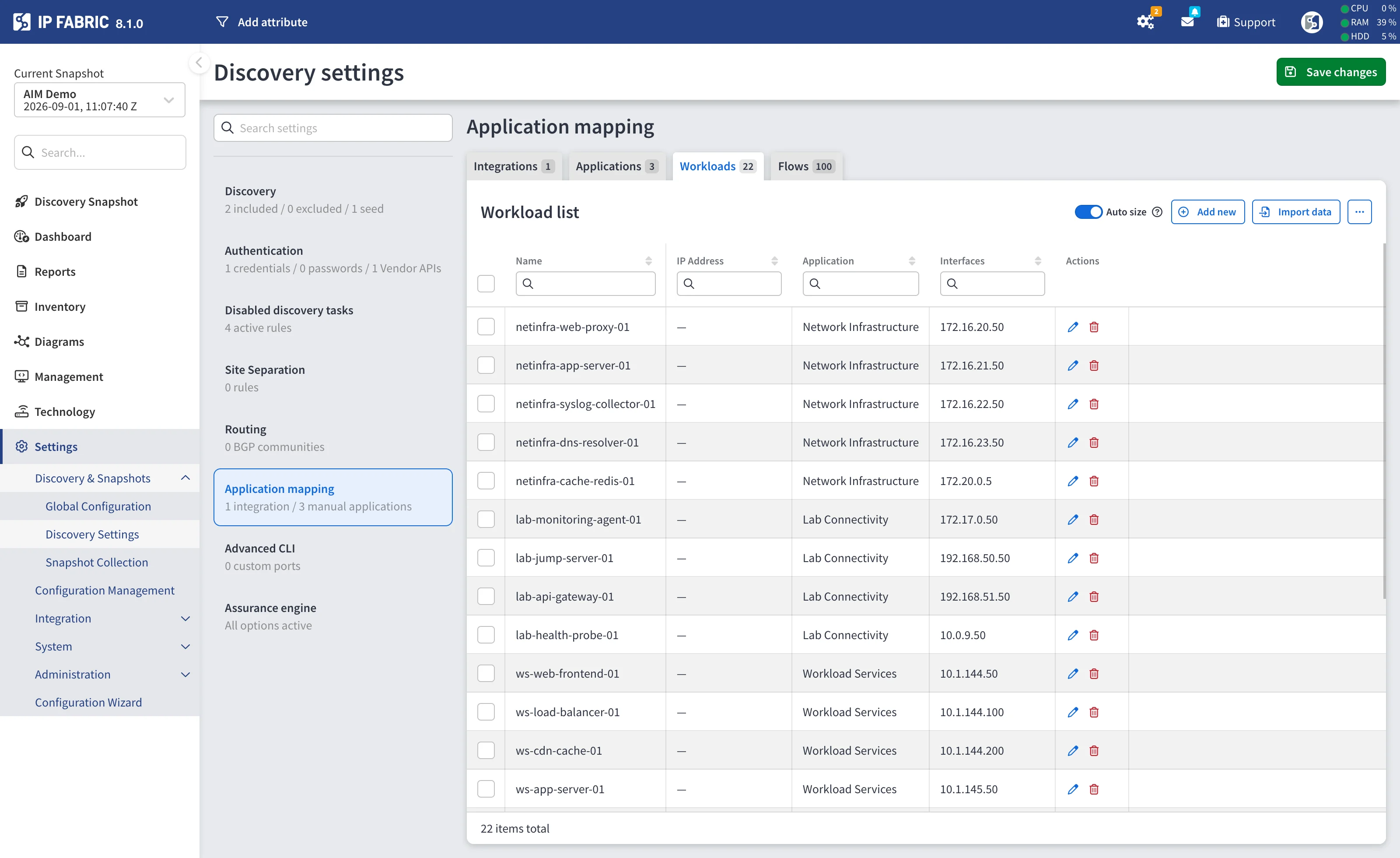
The Workload list table shows Name, IP Address, Application, and Interfaces.
| Field | Required | Description |
|---|---|---|
| Application | yes | The application this workload belongs to, picked from the applications you defined. |
| Name | yes | The workload name. |
| IP address | no | The workload’s primary address. |
| Interfaces | yes | One or more interface IP addresses. At least one is required. |
Flows
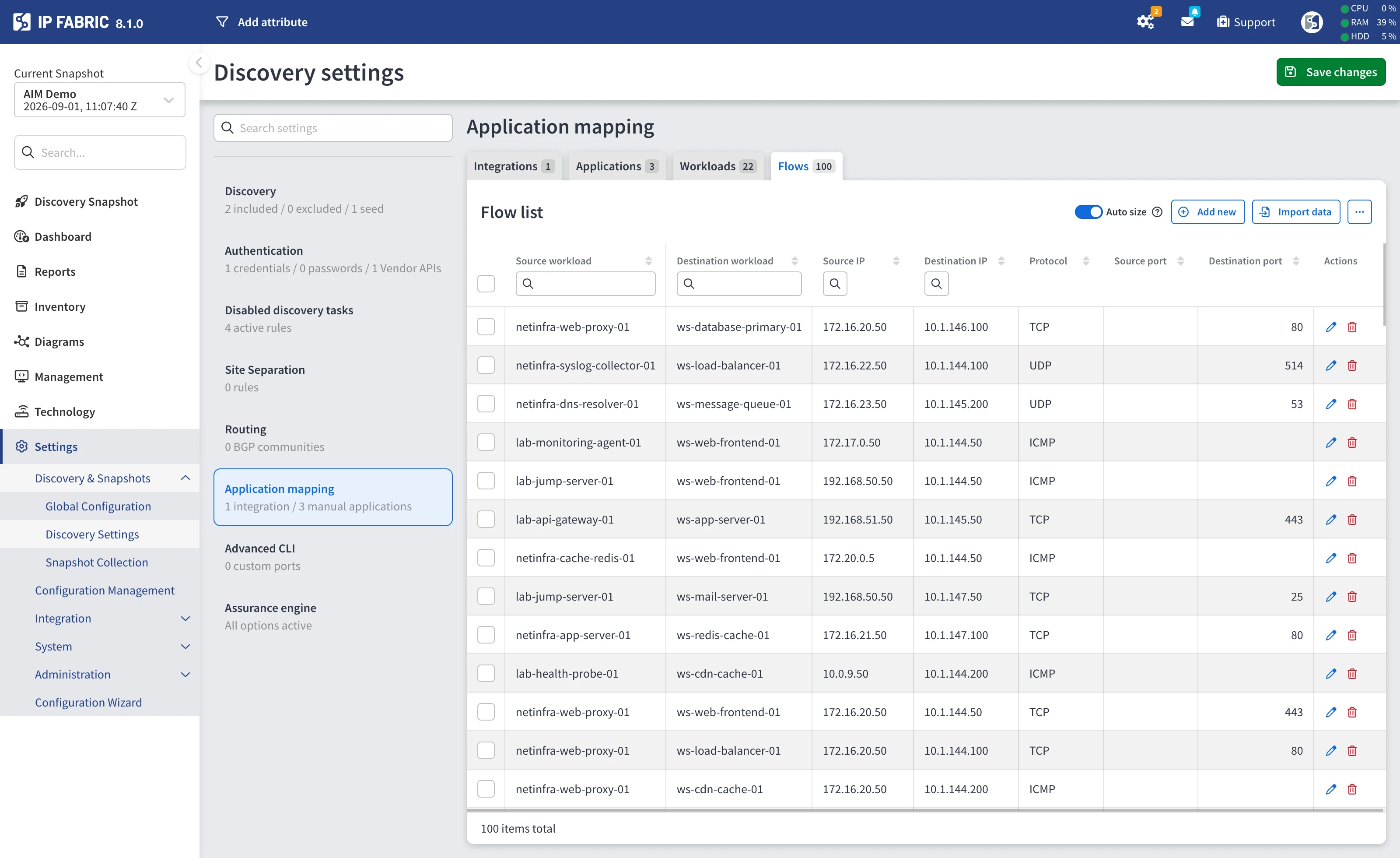
The Flow list table shows Source workload, Destination workload, Source IP, Destination IP, Protocol, Source port, and Destination port.
| Field | Required | Description |
|---|---|---|
| Source workload | yes | The workload the traffic originates from. |
| Destination workload | yes | The workload the traffic is sent to. |
| Source IP | yes | Valid IPv4 or IPv6 address. |
| Destination IP | yes | Valid IPv4 or IPv6 address. |
| Protocol | yes | One of ICMP, TCP, UDP, or ICMPv6. |
| Source port | no | 0-65535. |
| Destination port | no | 0-65535. |
Unresolved References
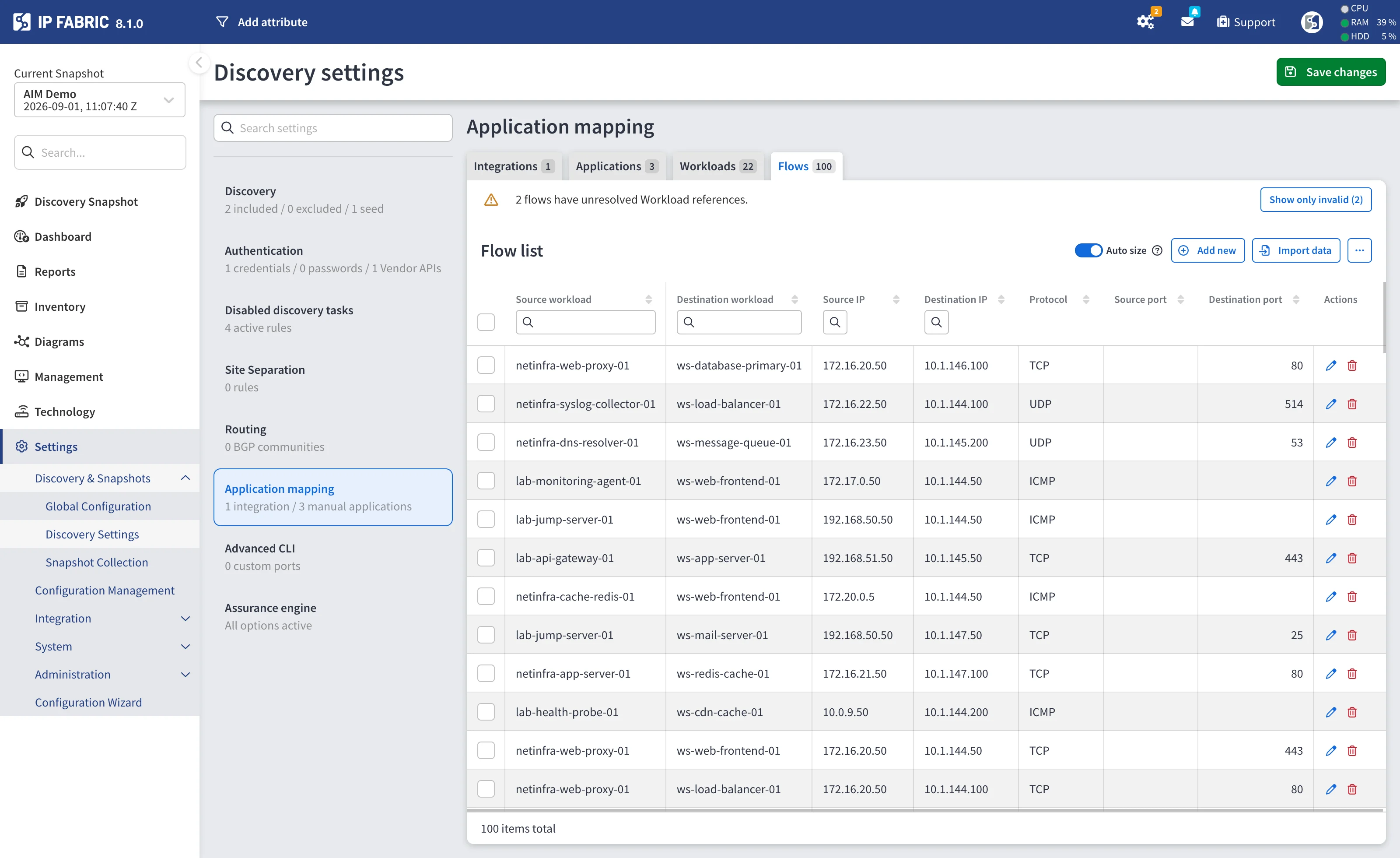
Because the three record types reference each other, deleting or renaming one can leave another pointing at something that no longer exists – a workload whose application was removed, or a flow whose workload was removed.
Affected tabs show a warning banner, for example
3 workloads have unresolved Application references, with a Show only
invalid button that filters the table down to the affected rows.
Unresolved references block saving
The settings form refuses to save while any record has an unresolved
reference, reporting Cannot save: N records have unresolved references. Fix
or delete those records to save. Reassign the affected rows or delete them,
then save again.
Import From CSV
Each of the three tabs has an Import data button that opens an import panel.
- Download example files provides correctly structured CSV templates.
- The tab’s own record type is the main file, and the other two are optional – so you can, for example, import applications, workloads, and flows in one go from the Applications tab.
- Each file is limited to 10 MB.
Two import modes are offered:
| Button | Behavior |
|---|---|
| Import | Adds the rows from the files to the records already present. |
| Import & replace | Replaces the existing records of each supplied type with the file contents. |
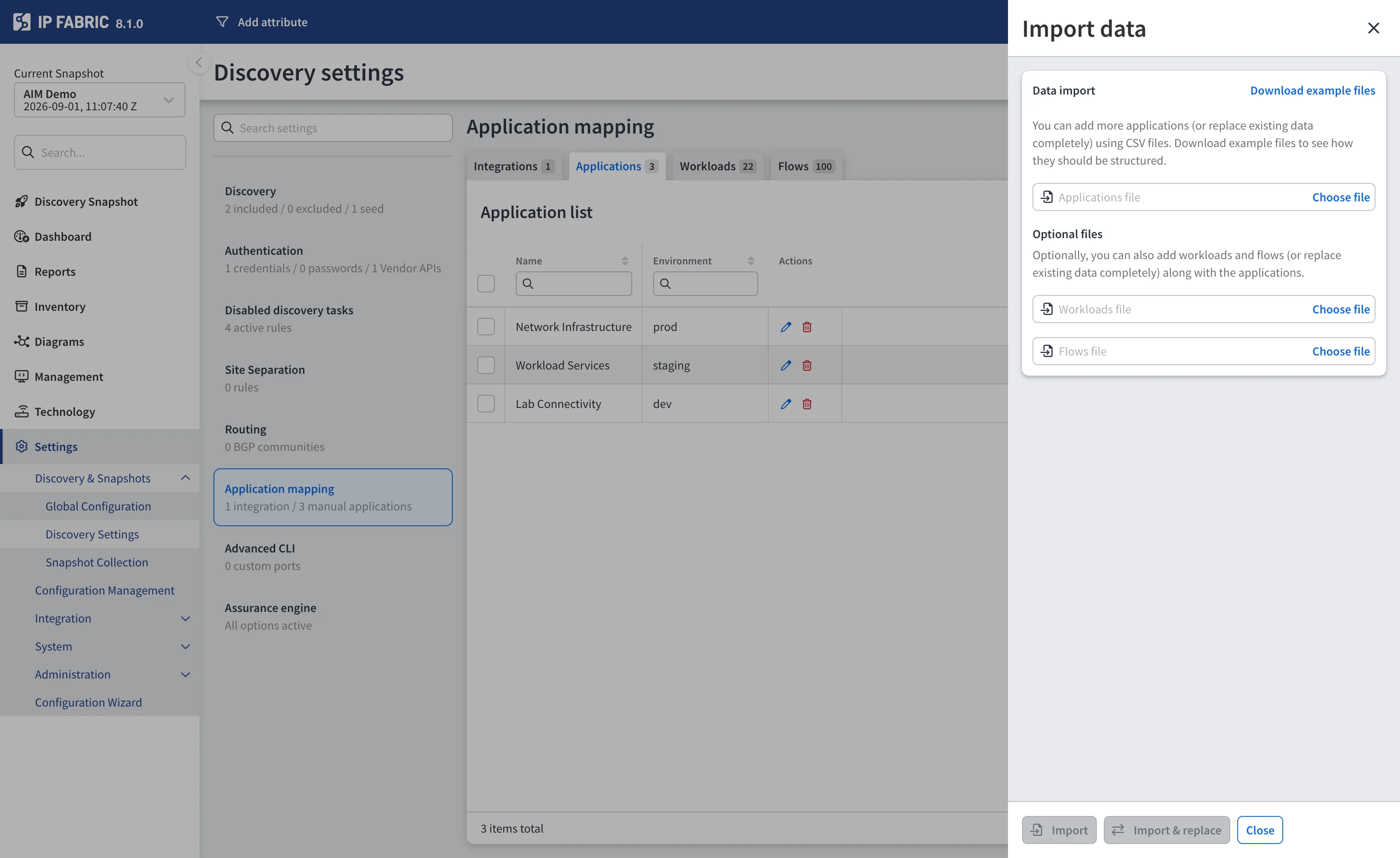
The expected columns are:
| File | Columns |
|---|---|
| Applications | id, name, environment |
| Workloads | id, applicationId, name, ipAddress, interfaces (list of IP addresses) |
| Flows | id, srcWorkloadId, dstWorkloadId, srcIp, dstIp, protocol, srcPort, dstPort |
id is optional – leave it empty and IP Fabric generates one. Supply it when
you need workloads and flows in the same import to reference the applications
and workloads by ID. protocol is the numeric value: 1 for ICMP, 6 for TCP,
17 for UDP, 58 for ICMPv6.
After processing, a summary reports how many records of each type were imported and lists the rows that failed, so a partially valid file still imports its good rows.
This is not the same CSV format as the AIM import API
The import in this settings panel and the
AIM import API endpoint
use different column names. The settings import links records with
IP Fabric id values, while the API import uses your own externalId keys
and a separate interfaces file. Use the example files from the panel for the
settings import, and the documented API schema for the endpoint.
Imported records are only stored once you save the settings form.
Where the Data Appears
Once AIM data has been ingested – by discovery for integrations, or by saving the settings form for manual records – it is available under Inventory → Applications, in the Applications, Workloads, Flows, and Devices tables.
The Devices table is not populated by ingestion. It lists the network devices that an application’s traffic traverses, which is produced by a separate on-demand path-lookup calculation started from the Applications or Flows table.
Related Documentation
- Application Infrastructure Mapping API – ingesting AIM data from CSV files, calculating path lookups, and reading the AIM inventory tables over the API.
- Using AIM Through the MCP Server – working with AIM data from an AI assistant.